Your Profile
Learn how to manage your profile, review your activity and customize which DAOs appear in your dashboard.
Section titled “Learn how to manage your profile, review your activity and customize which DAOs appear in your dashboard.”Your Profile
Section titled “Your Profile”Manage your identity and DAO visibility on Nouns Builder
Section titled “Manage your identity and DAO visibility on Nouns Builder”Your profile page is a participation dashboard for your connected wallet. It brings together your identity, links, delegation controls, DAO memberships, activity, and token holdings. Open it by connecting your wallet and selecting your profile from the avatar menu in the top-right corner of the app.
Profile Overview
Section titled “Profile Overview”Once connected, your profile displays:
- Your ENS name (or shortened wallet address if no ENS is set)
- Your wallet address, with a one-click copy button
- Your profile links, when configured
- Summary cards for your DAOs, tokens, votes, proposals and bids
- An Activity feed of your recent on-chain activity across DAOs
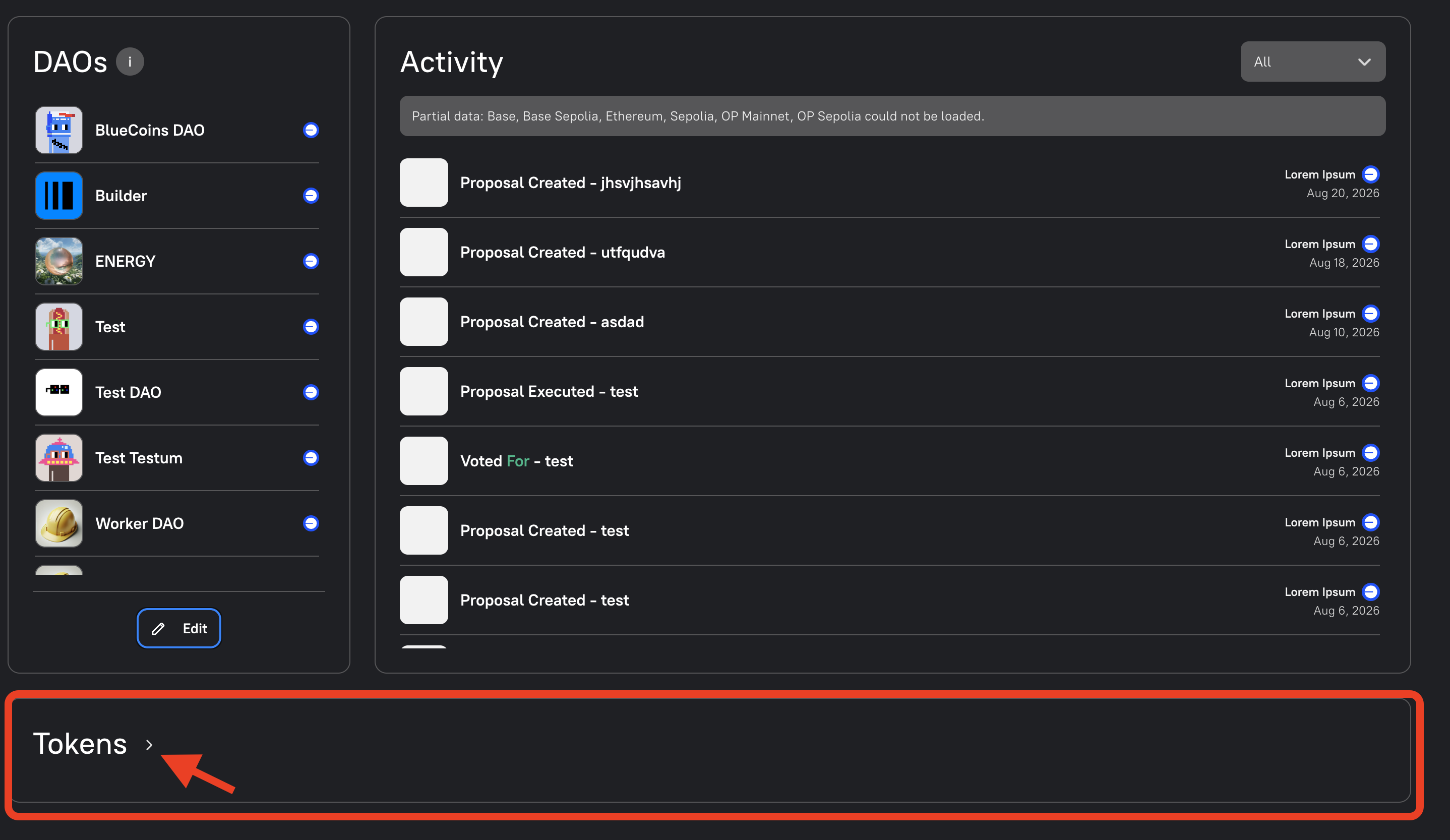
- A Tokens section listing the DAO tokens you hold
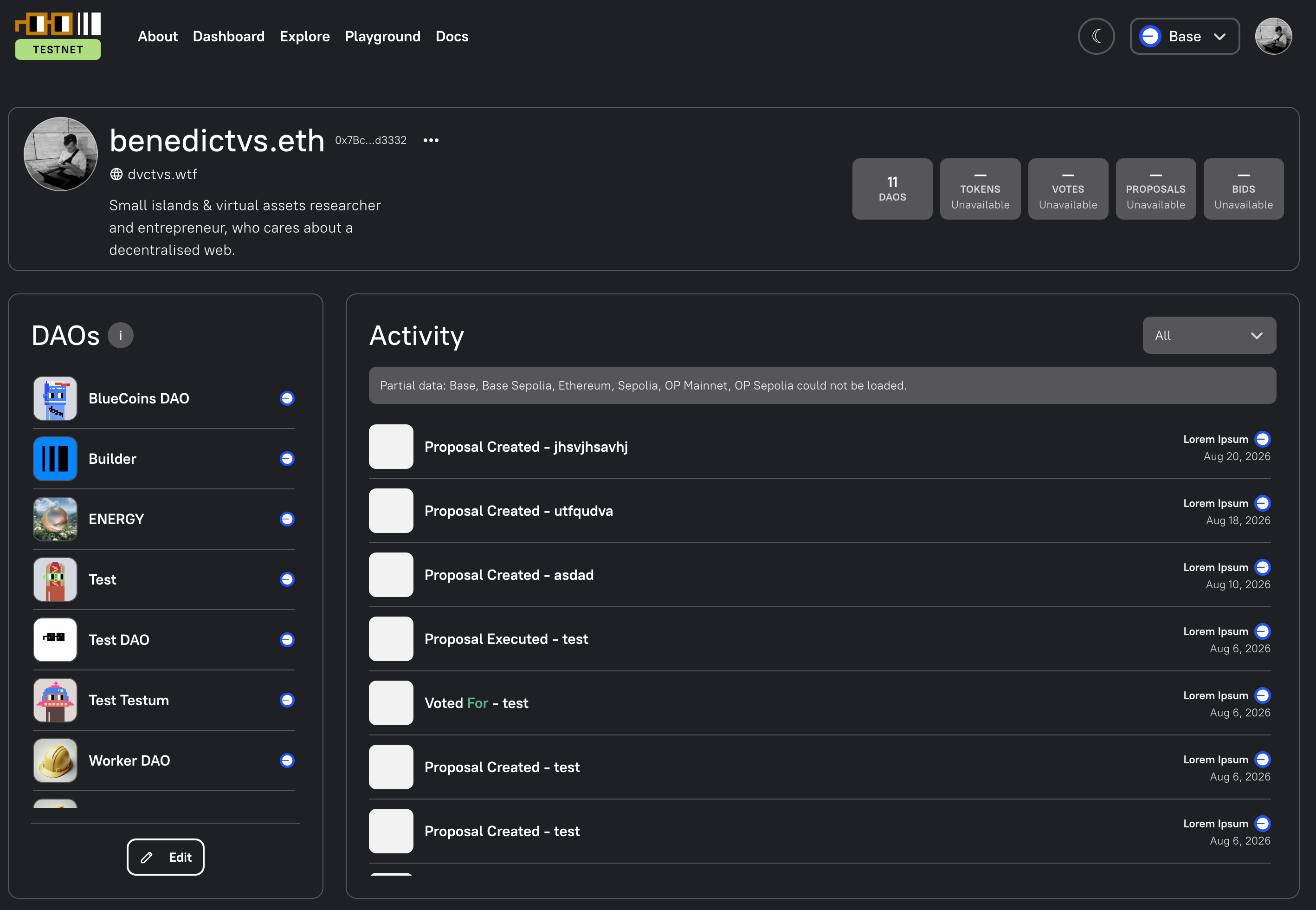
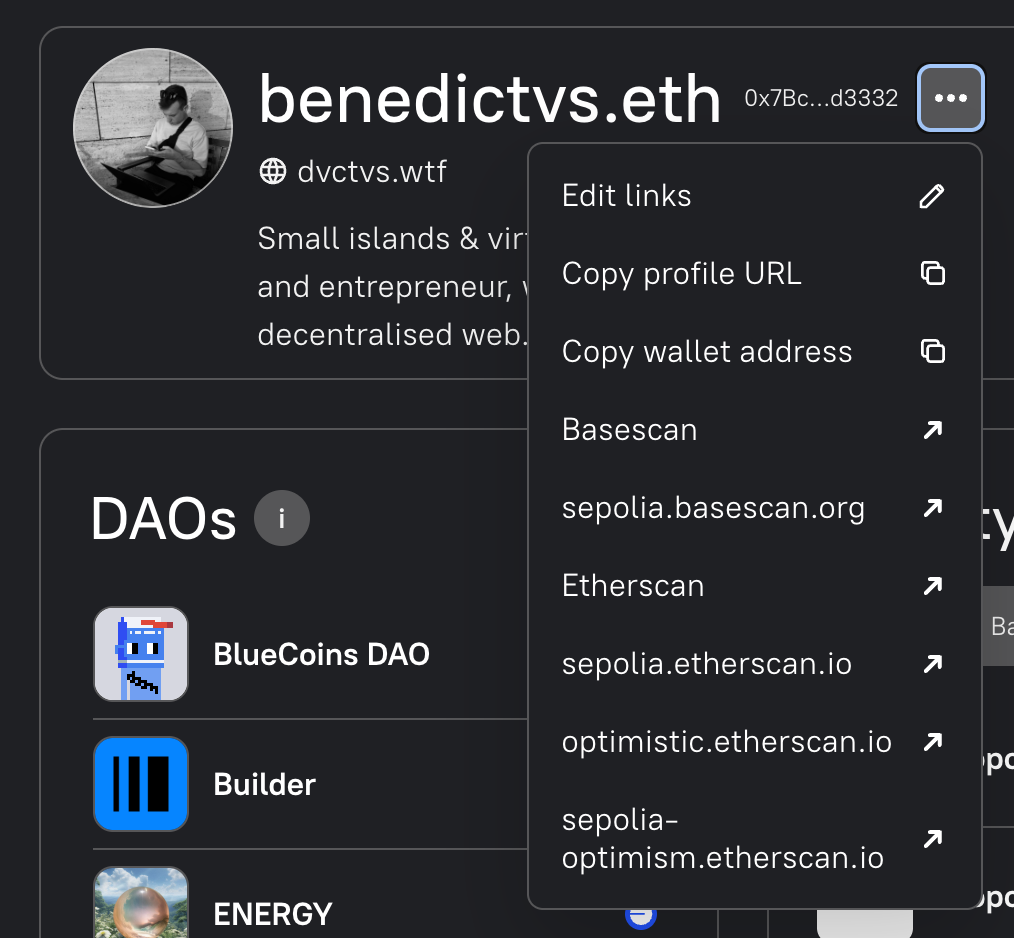
Use the options menu beside your profile identity to edit your links, copy your profile URL or wallet address, and open the relevant block explorer.
DAOs and Activity
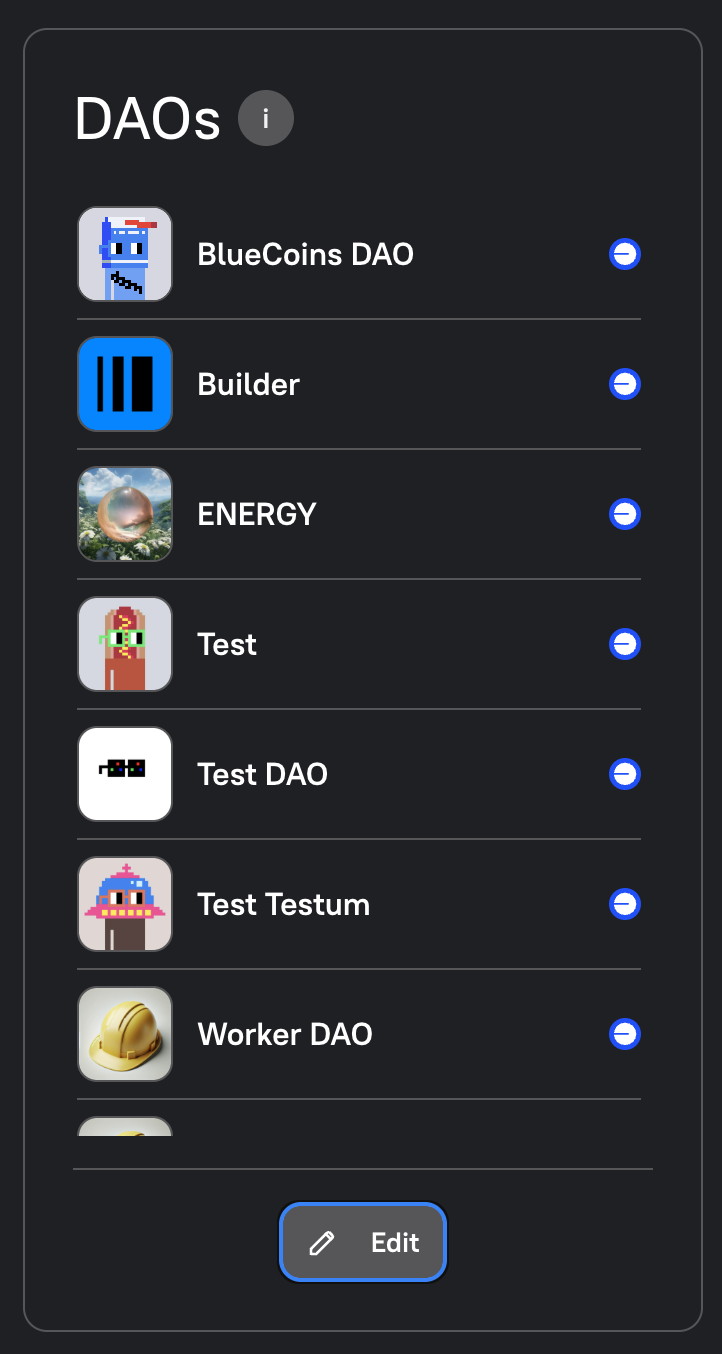
Section titled “DAOs and Activity”The DAOs section lists every DAO in which your connected wallet holds a token. Each card shows the DAO name, logo and network. Select a DAO card to filter the Activity and Tokens sections to that DAO; select it again to return to the combined view.
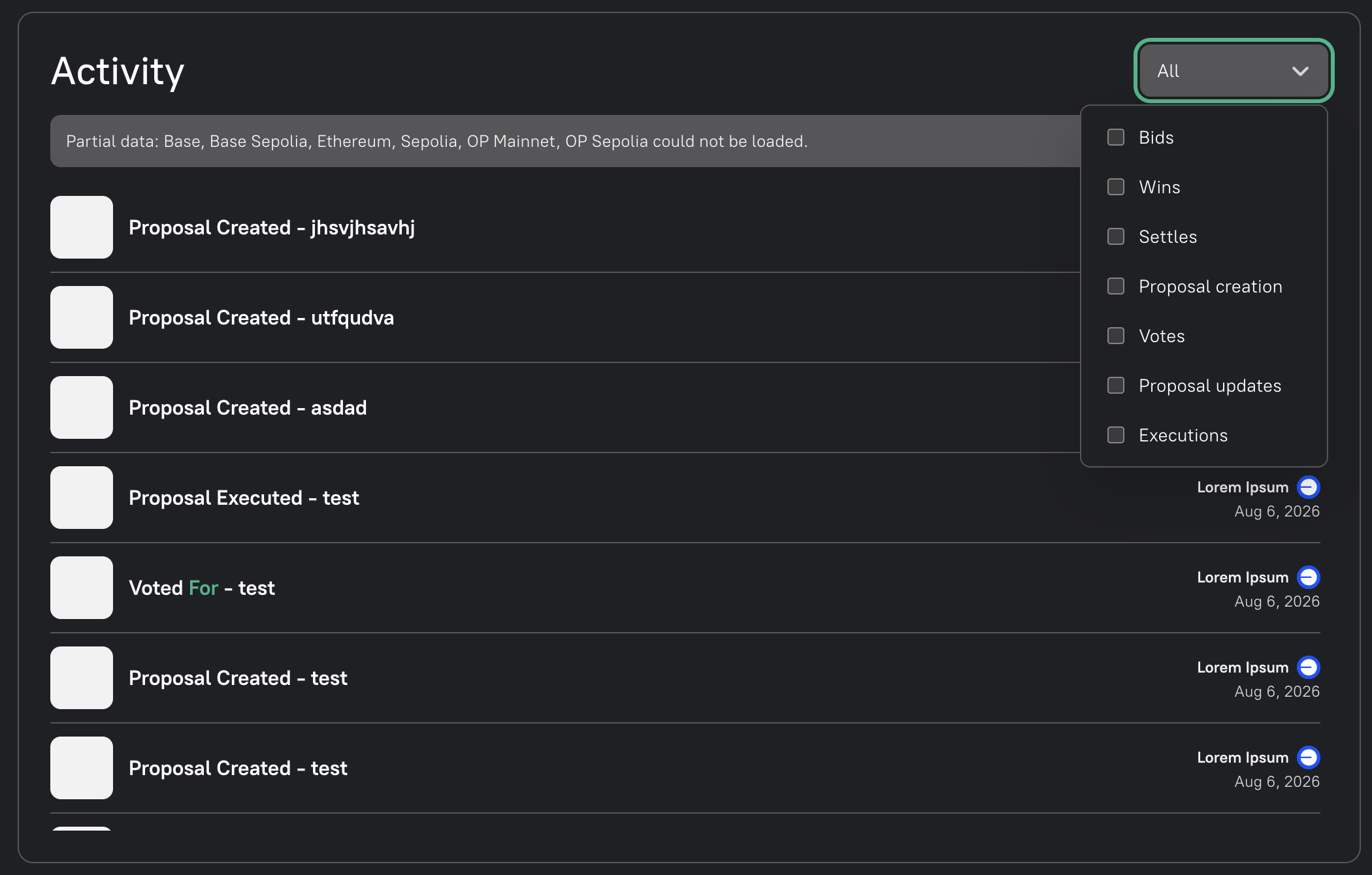
Use the Activity menu to filter the feed by event type, including bids, wins, settles, proposal creation, votes, proposal updates and executions.
Editing Your DAO List
Section titled “Editing Your DAO List”You can customize which DAOs are visible on your profile and in your wallet dropdown by using Edit mode.
-
Open Edit mode
The page starts in browse mode. Click the Edit button next to the DAOs heading to begin changing the list.
-
Use the edit controls
Click Edit to reveal the controls for changing the DAO list.
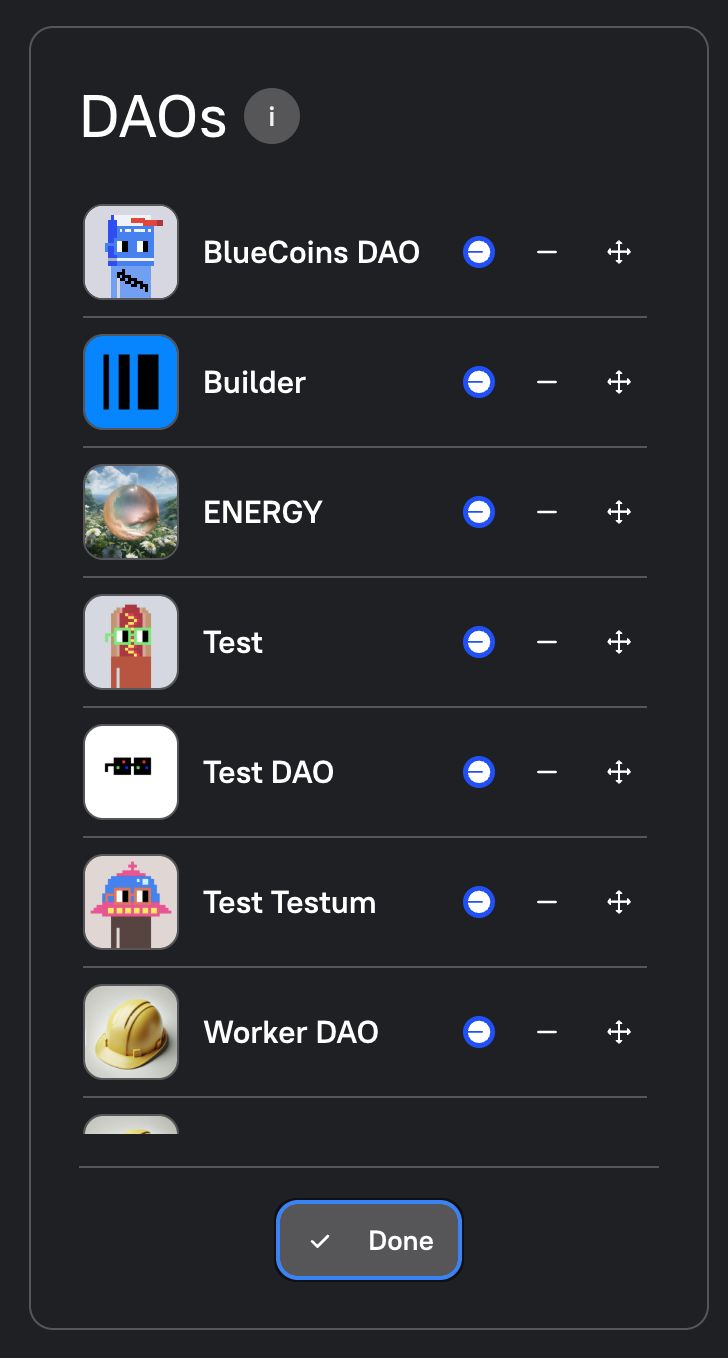
-
Hide a DAO
Click the minus (−) icon next to a DAO to remove it from the visible list and wallet dropdown.
-
Reorder your DAOs
Click and drag the move handle on the right side of a DAO entry to reorder how DAOs appear in your list.
-
Save your changes
Click Done to exit Edit mode and save your preferences.
Tokens
Section titled “Tokens”The Tokens section is collapsed by default so the profile stays easy to scan. Select the chevron beside Tokens to expand the gallery, then use the sort menu to change the order.
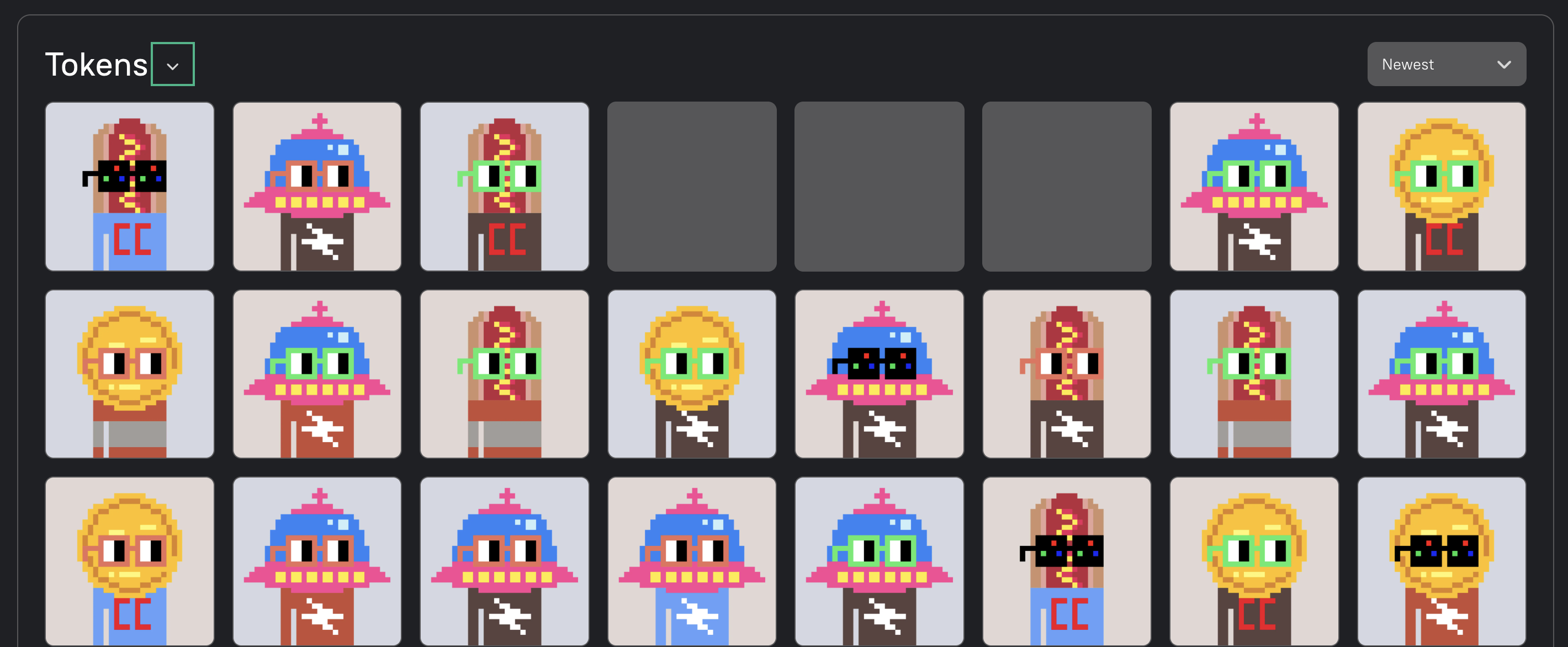
Selecting a DAO card filters the token gallery to that DAO. Token cards show the owned NFTs and their collection context.
Wallet and Delegation Actions
Section titled “Wallet and Delegation Actions”The profile and wallet menus provide quick access to your wallet address, profile URL, block explorers and profile links. You can also delegate to a profile when delegation is available for the selected DAO.
When viewing your own profile, select an owned NFT to start the transfer flow. Choose a recipient, review the warning and transaction details, then submit the transfer from your wallet. Token transfers are limited to one chain at a time.