Proposal Candidates
Develop an idea, gather feedback and collect support before submitting a proposal
Section titled “Develop an idea, gather feedback and collect support before submitting a proposal”Proposal candidates give a DAO space to develop an idea before it becomes a formal governance proposal. Anyone can publish a candidate, share revisions and invite members to signal their view. DAO members can also sign their support so that a candidate can be promoted to a proposal once it meets the DAO’s Proposal Threshold.
Creating a candidate does not open voting. Candidates remain separate from the formal proposal lifecycle until they are promoted.
Find Proposal Candidates
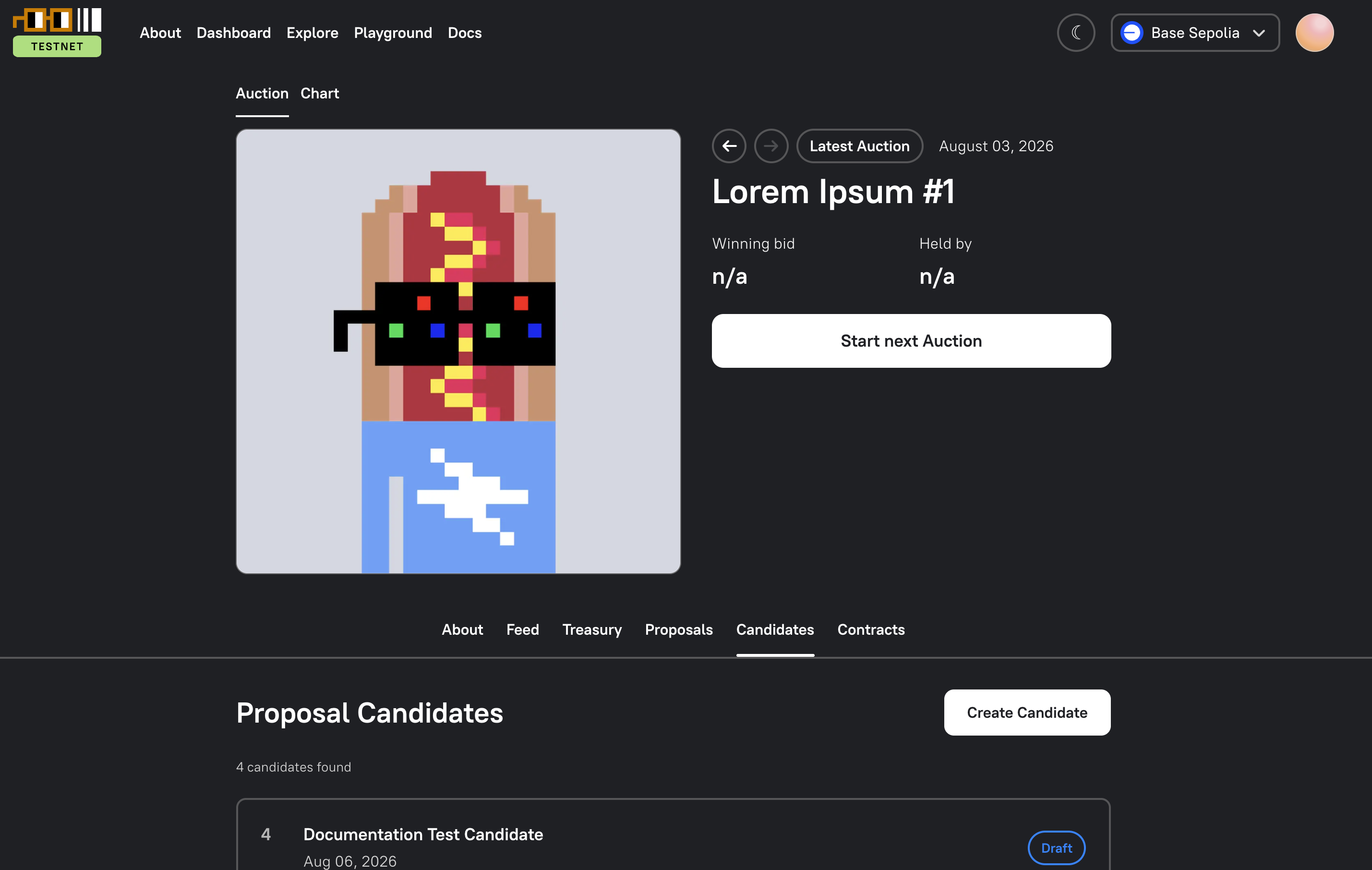
Section titled “Find Proposal Candidates”Open your DAO and select the Candidates tab. The page lists active candidates and their current support. Select a candidate to read it, review its transactions and join the discussion.
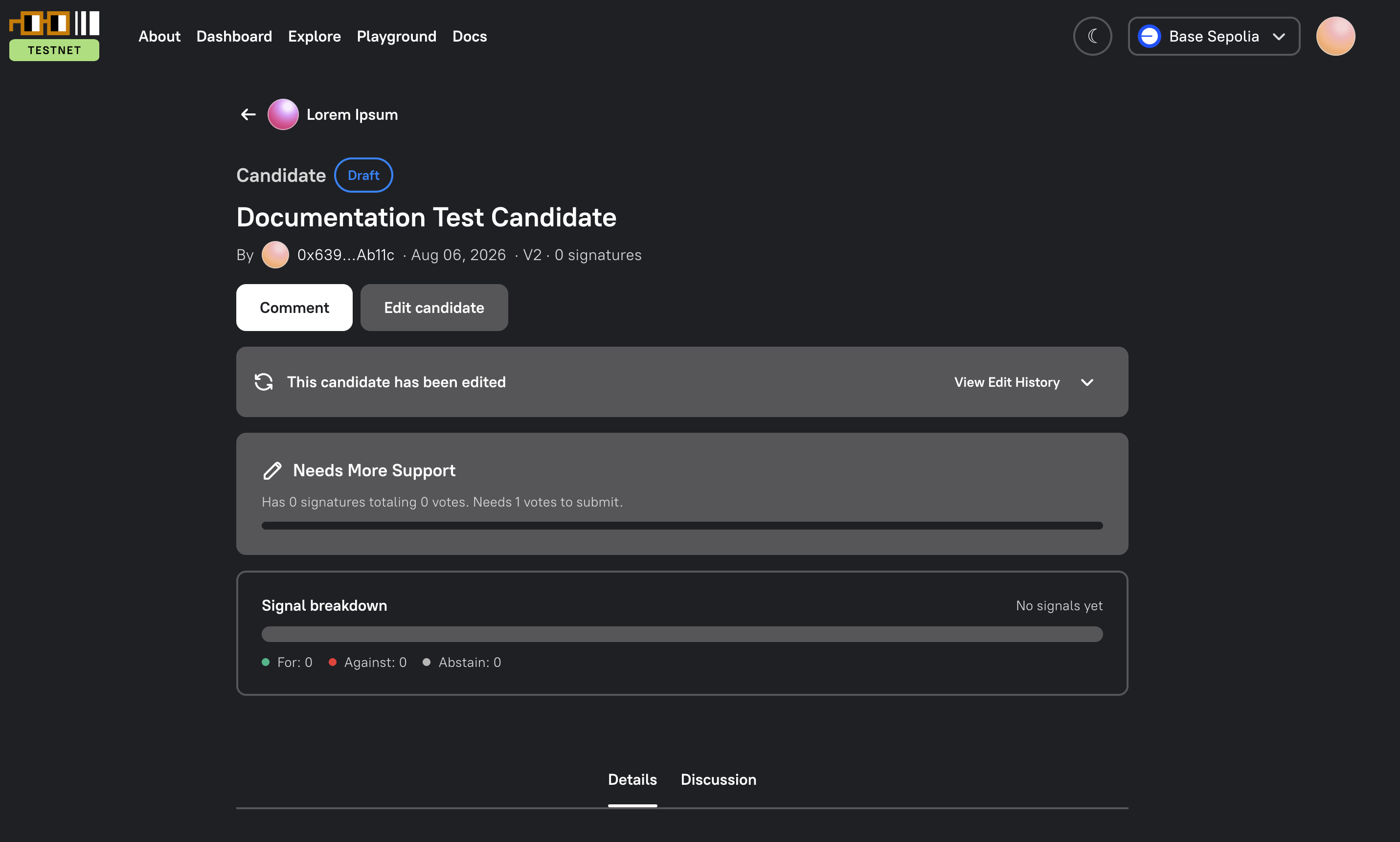
The candidate page shows:
- its current version and edit history;
- the proposed transactions;
- the signatures collected towards the Proposal Threshold;
- For, Against and Abstain signals from DAO members; and
- whether it is still a draft or has been promoted to a proposal.
Create a Candidate
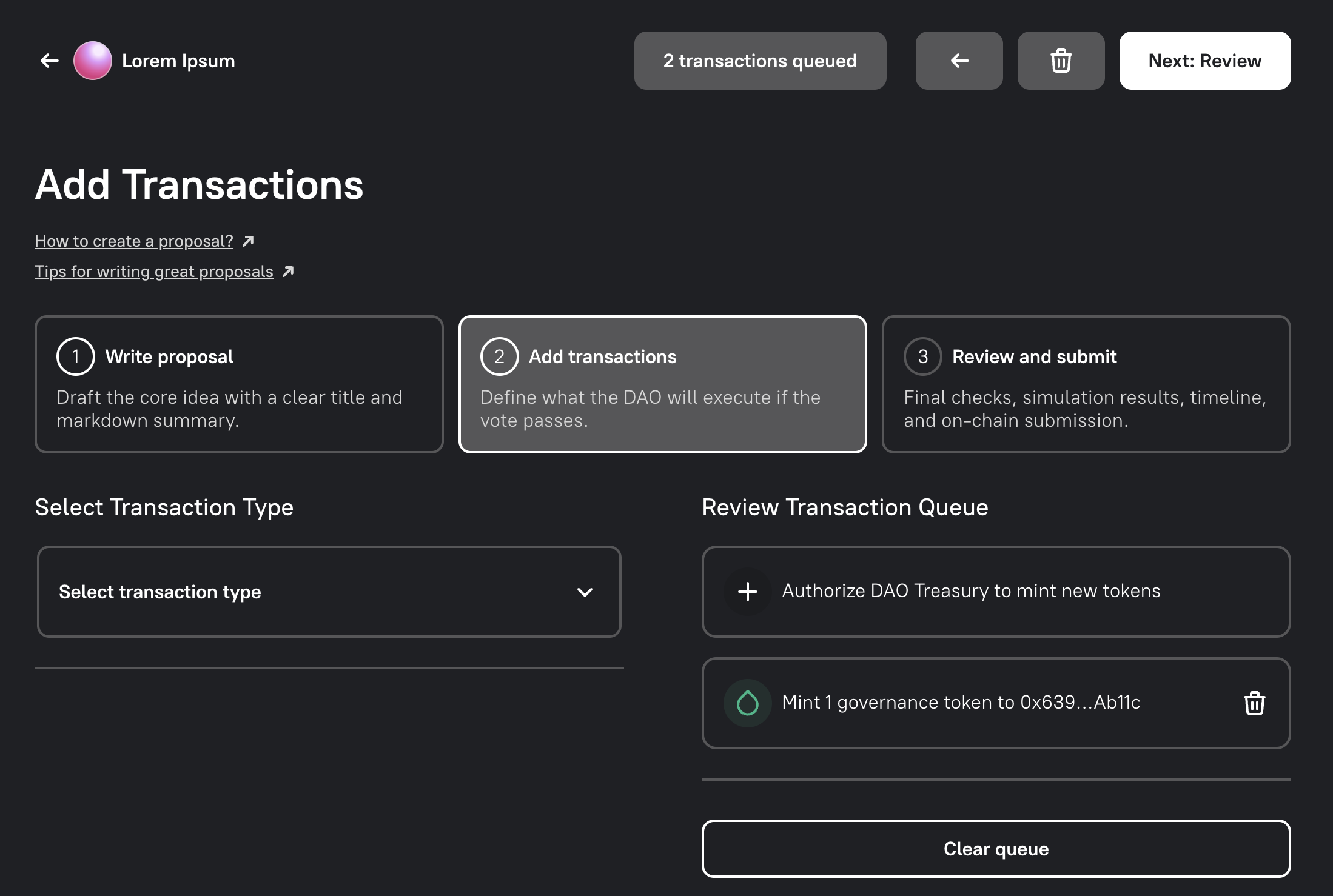
Section titled “Create a Candidate”From the Candidates tab, select Create Candidate. The candidate builder follows the same three steps as the proposal builder:
- Write Candidate — add a clear title and description.
- Add Transactions — define what the DAO would execute if the candidate later becomes a successful proposal.
- Review & Submit — check the content and transactions before publishing.
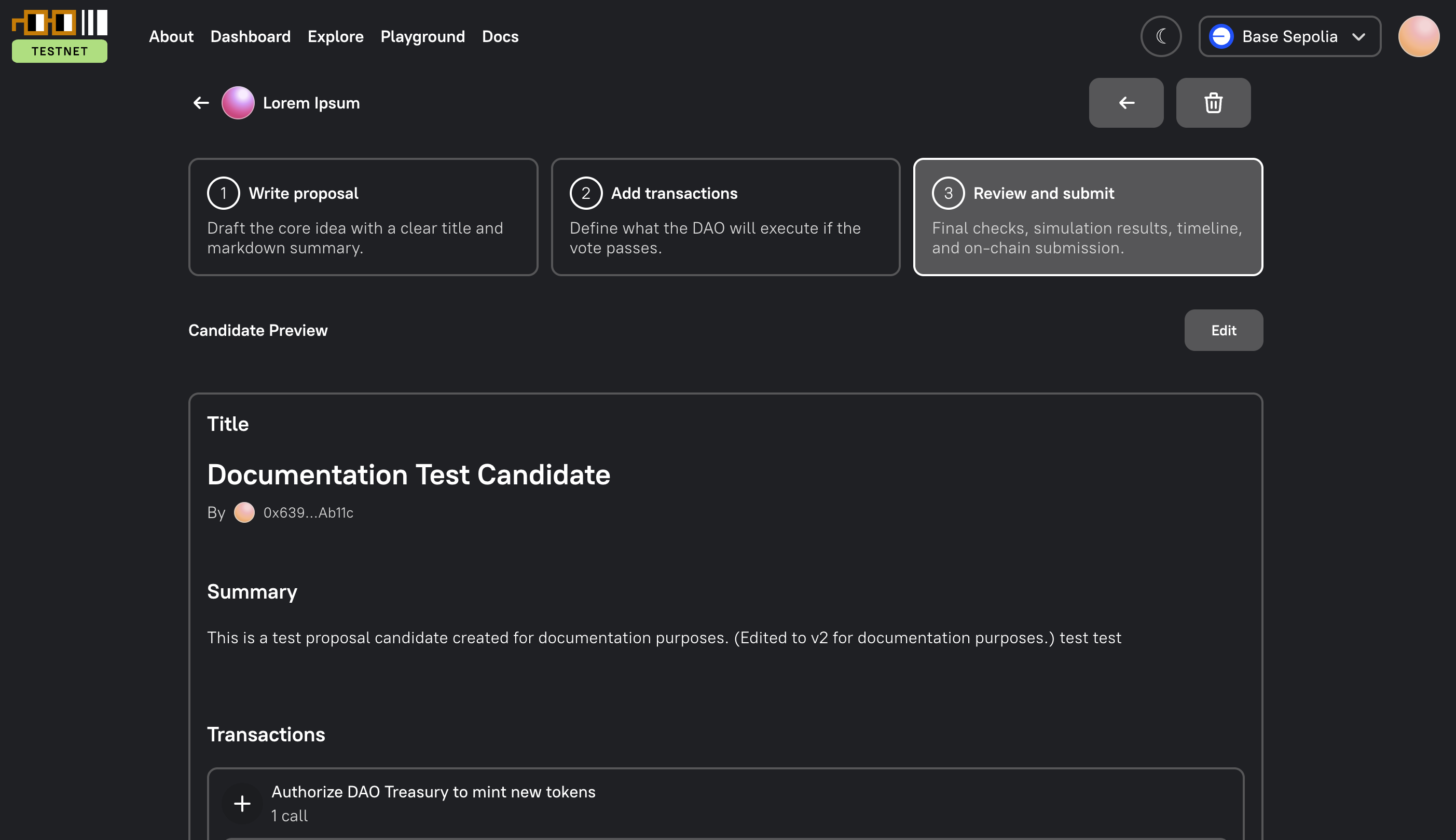
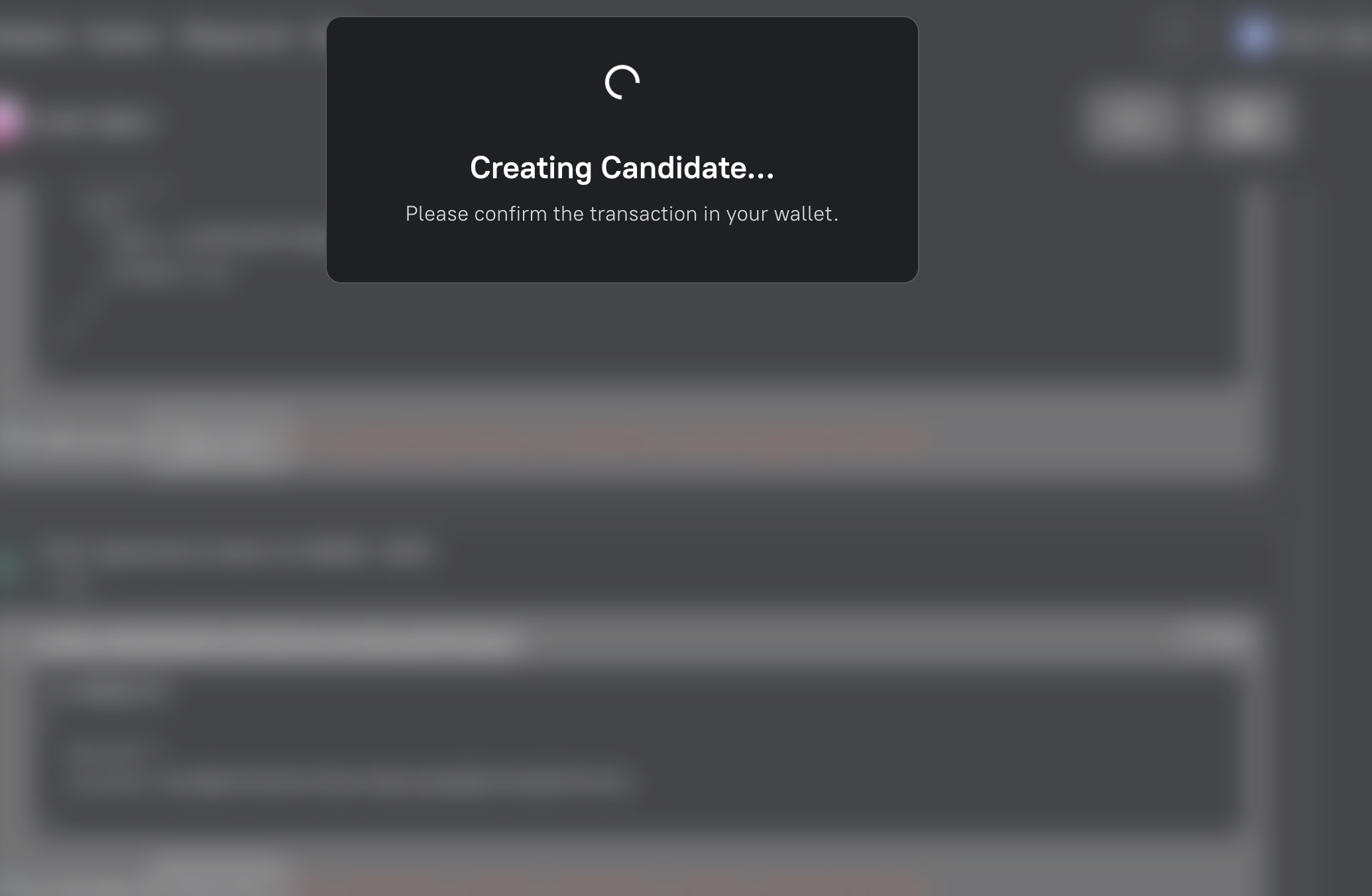
When you submit, confirm the transaction in your wallet. The candidate is recorded as an onchain attestation and will appear in the DAO’s Candidates tab.
Edit a Candidate
Section titled “Edit a Candidate”The candidate creator can select Edit Candidate to publish a new version. Work through the same Write, Transactions and Review steps, then confirm the update in your wallet.
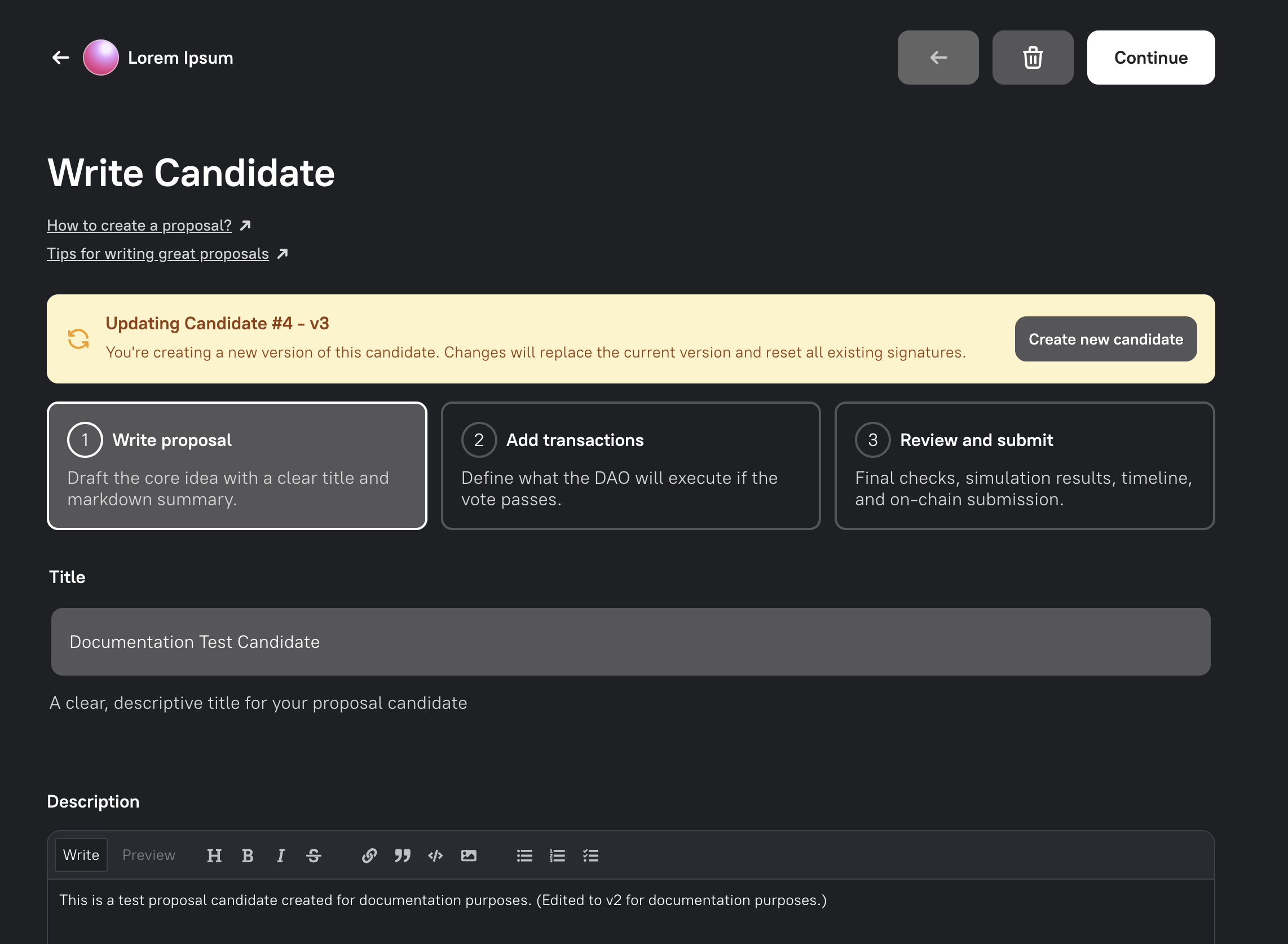
An update replaces the candidate’s current version and resets its existing sponsor signatures. This protects signers from supporting content or transactions they have not reviewed. Ask supporters to review and sign the new version after it is published.
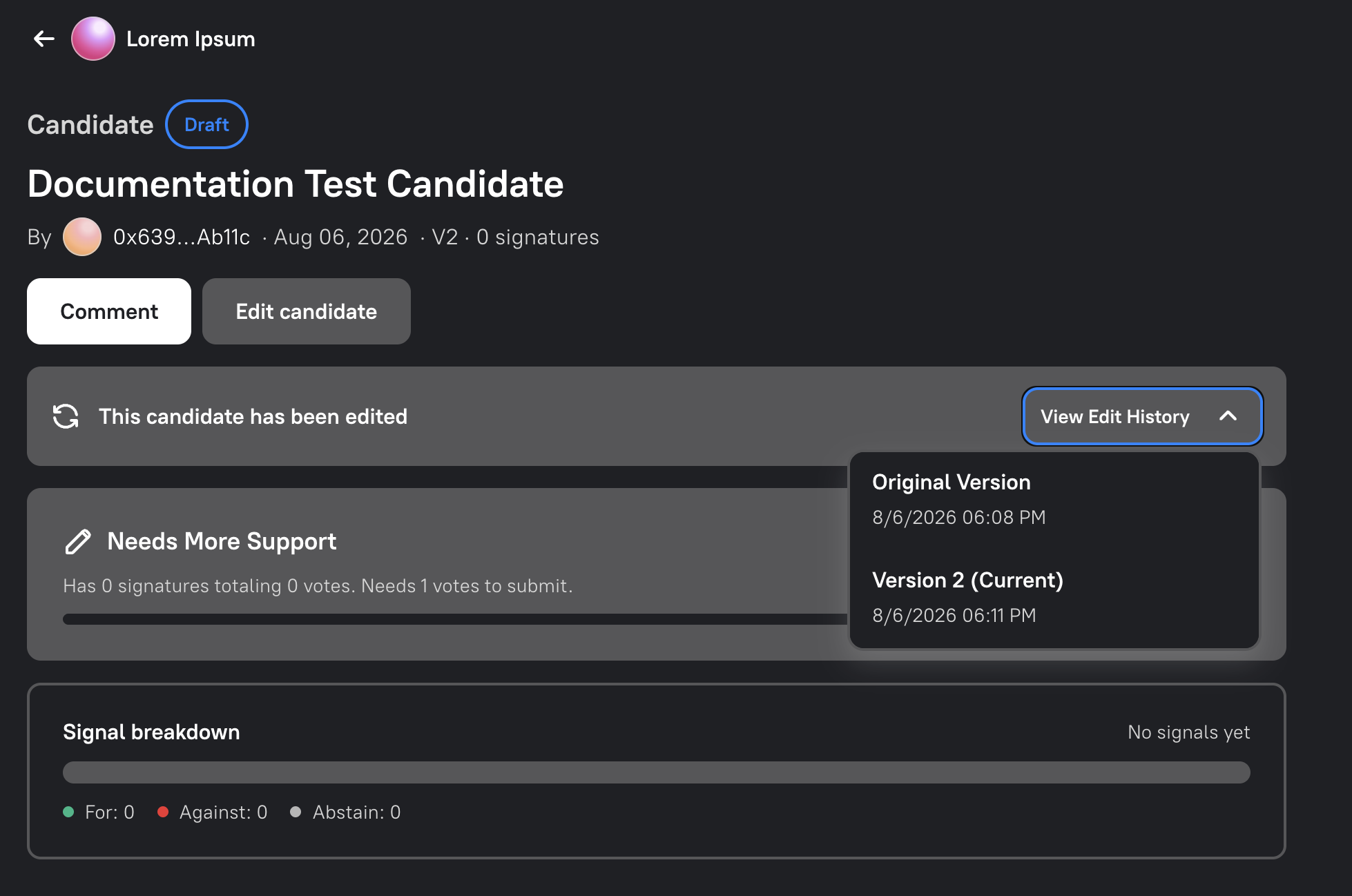
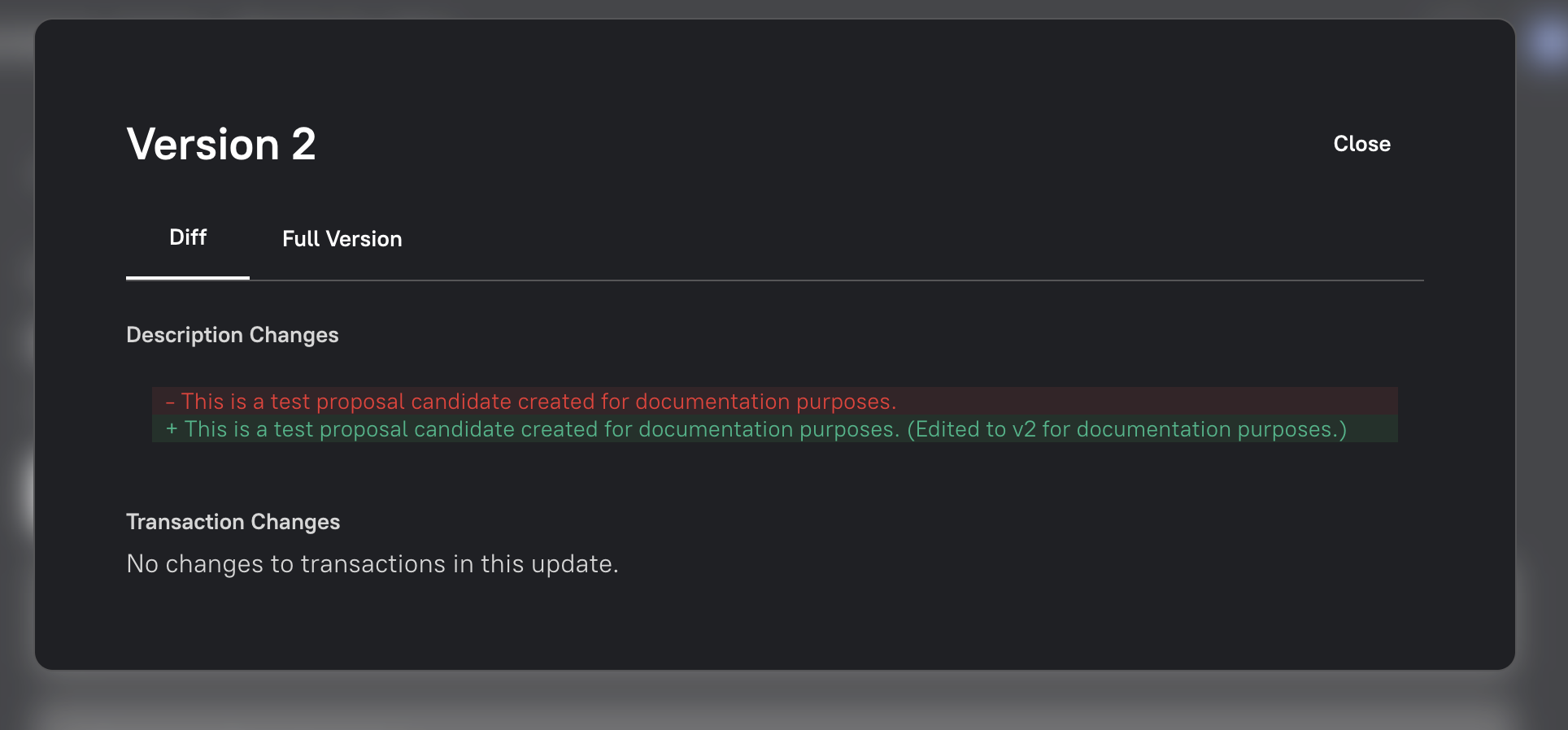
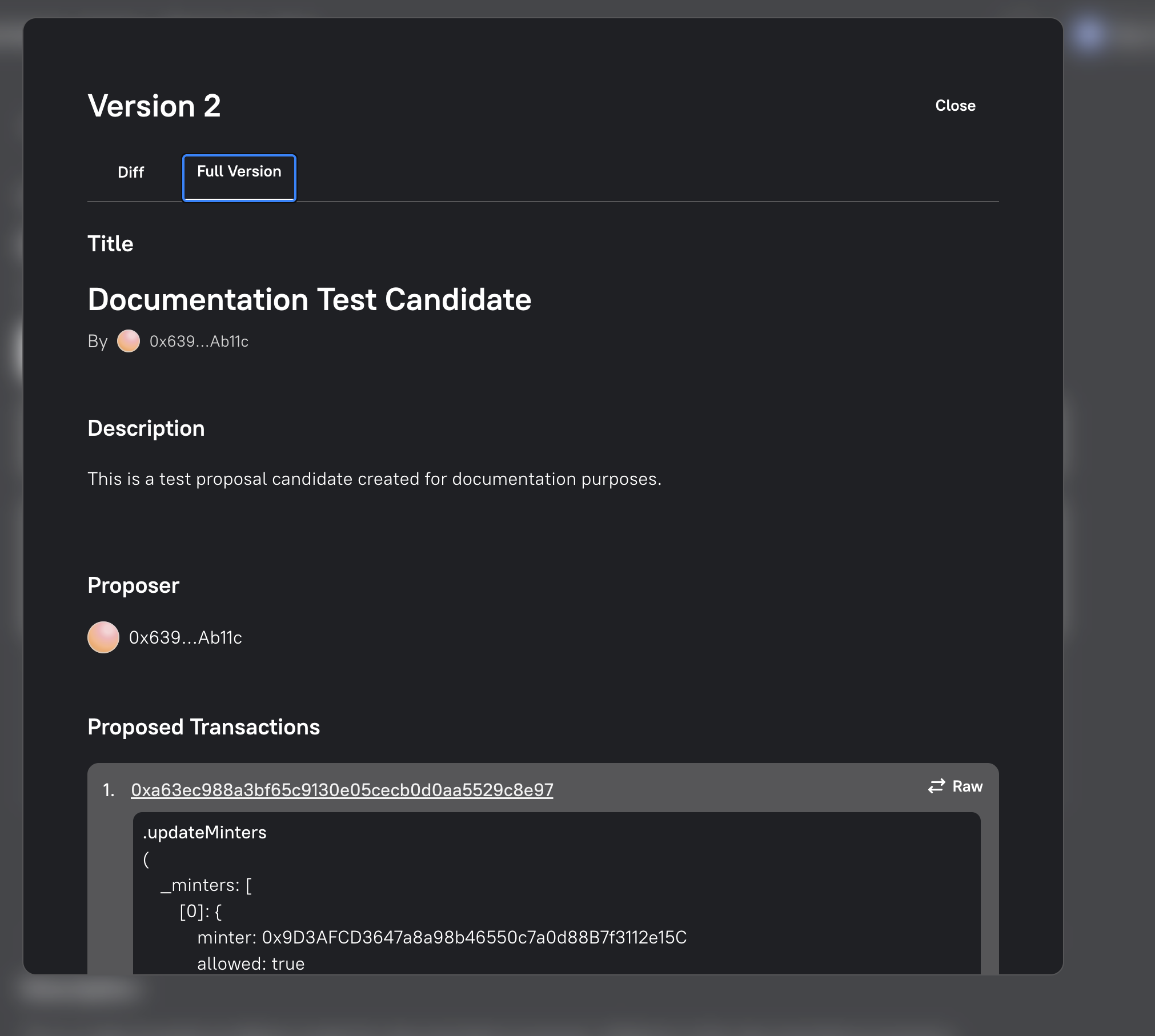
Previous versions remain available from View Edit History. Select a version to compare its changes or open Full Version to read that revision on its own.
Comment and Signal
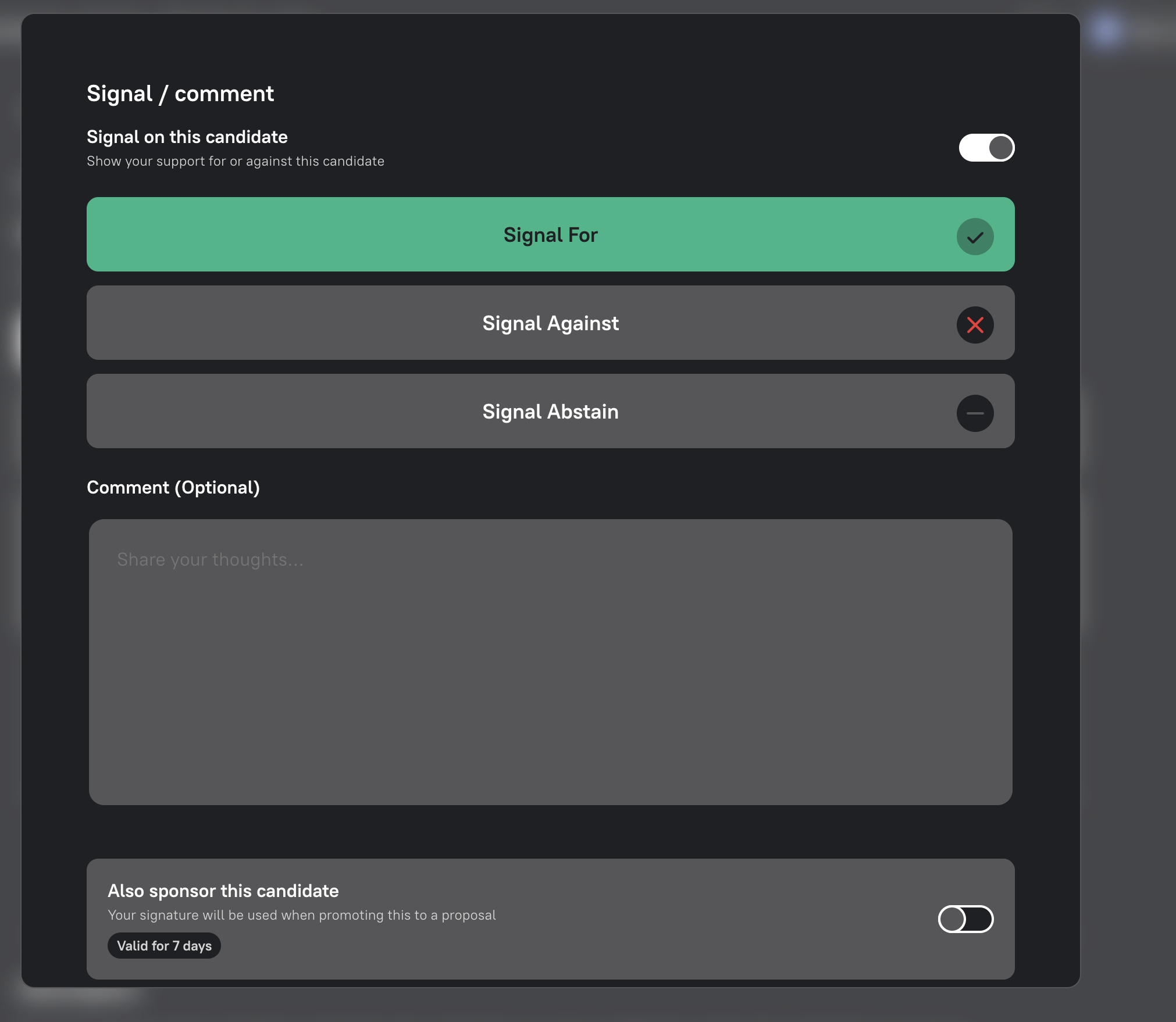
Section titled “Comment and Signal”DAO members can use the candidate’s Discussion tab to comment and signal For, Against or Abstain. A signal records a member’s position on the candidate, but it is not a vote on a formal proposal.
Select Add a comment, enable Add a signal, choose your position and add an optional comment. Then confirm the action in your wallet.
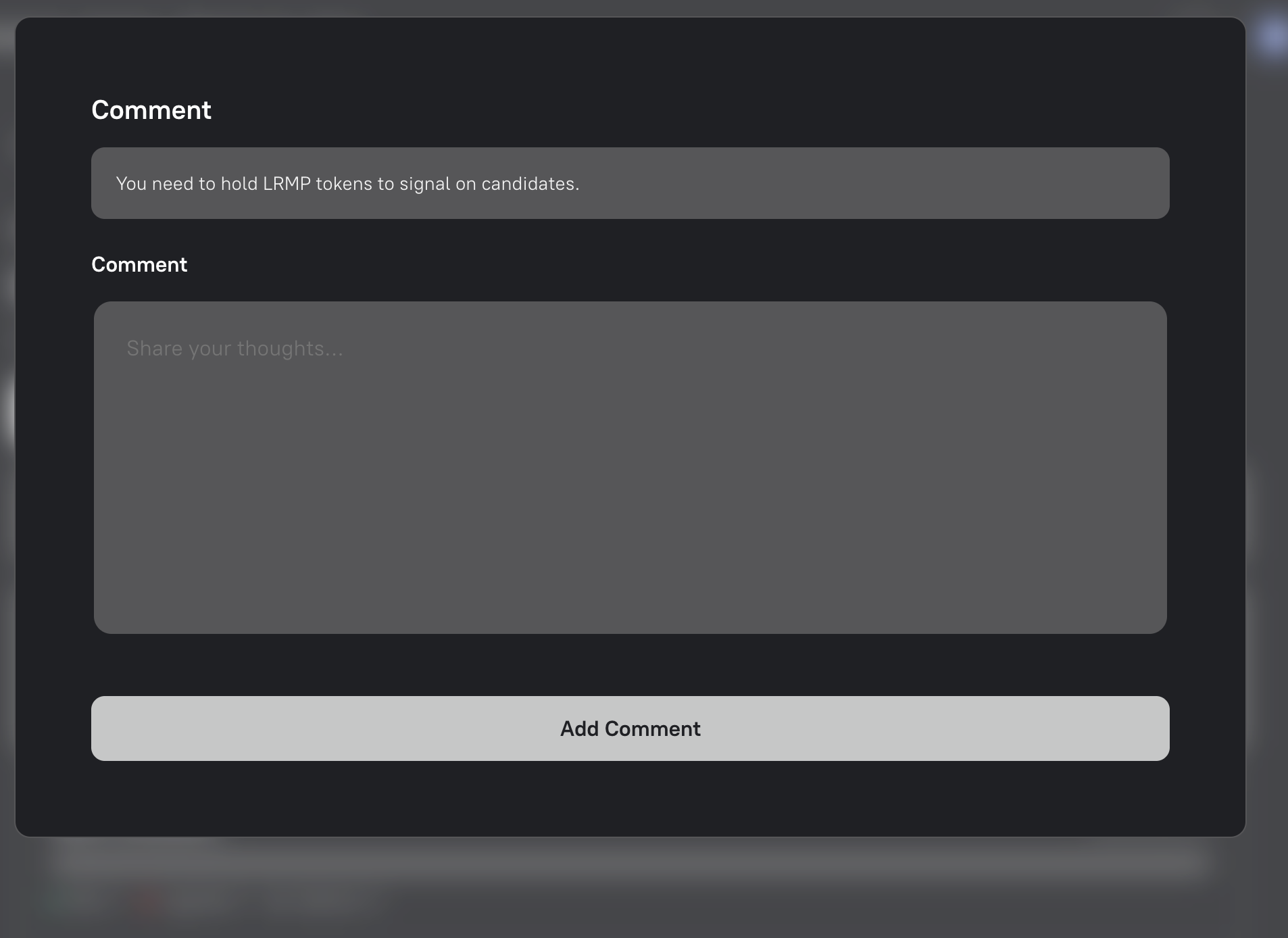
Wallets that do not hold the DAO’s governance token can read candidates and comment, but cannot signal as a member.
Sponsor a Candidate
Section titled “Sponsor a Candidate”Sponsorship is different from signalling. A sponsor signs support for submitting the exact candidate version as a formal proposal. These signatures contribute voting power towards the DAO’s Proposal Threshold.
There are two ways to add a sponsor signature.
Sponsor While Signalling
Section titled “Sponsor While Signalling”An eligible DAO member can signal For and sponsor the candidate in the same flow:
- Select Signal / comment.
- Enable Signal on this candidate, select For and add an optional comment.
- Enable Also sponsor this candidate.
- Select Signal & Sign.
- Complete both wallet requests: first sign the sponsorship message, then submit the signal and optional comment onchain.
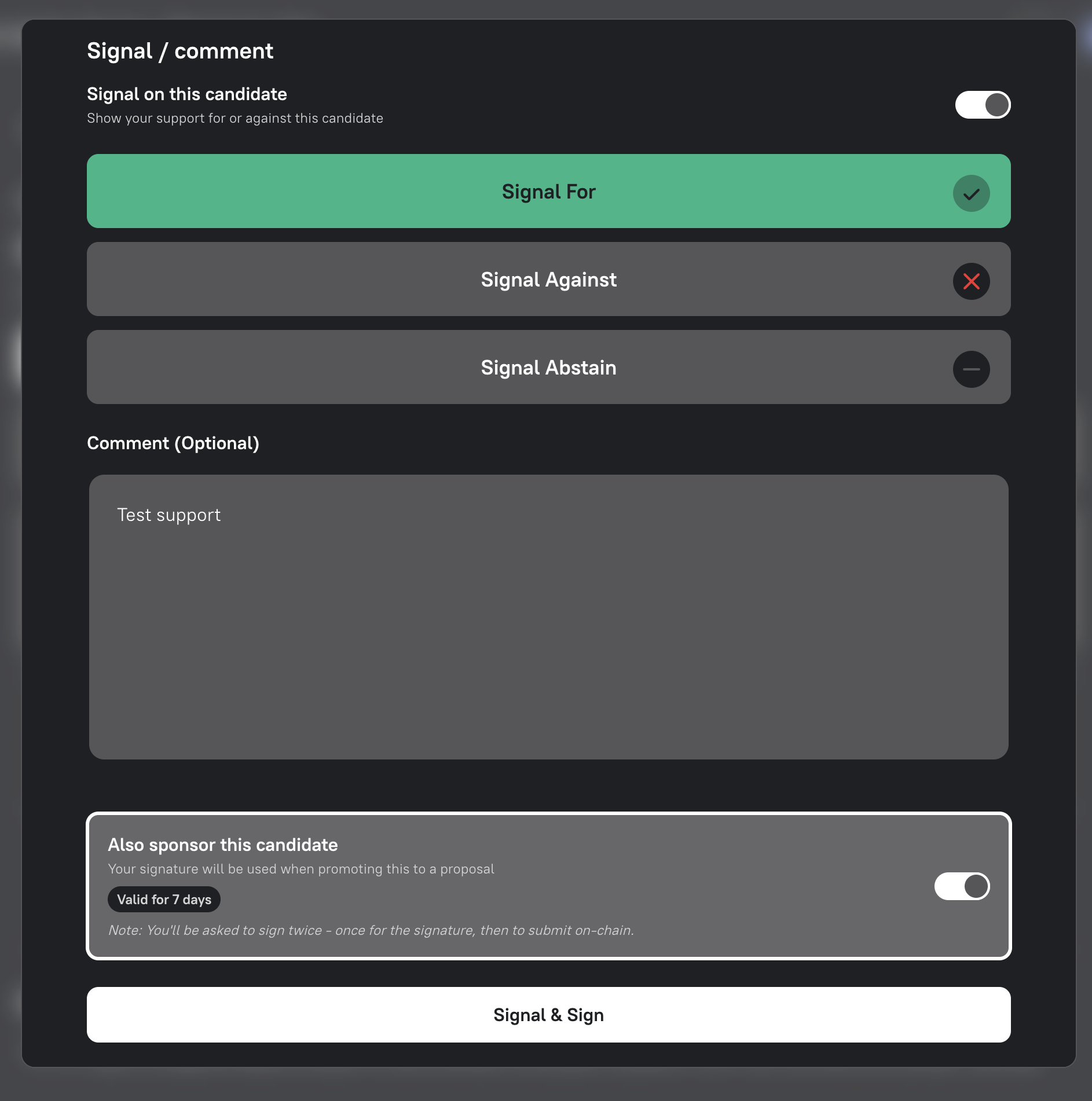
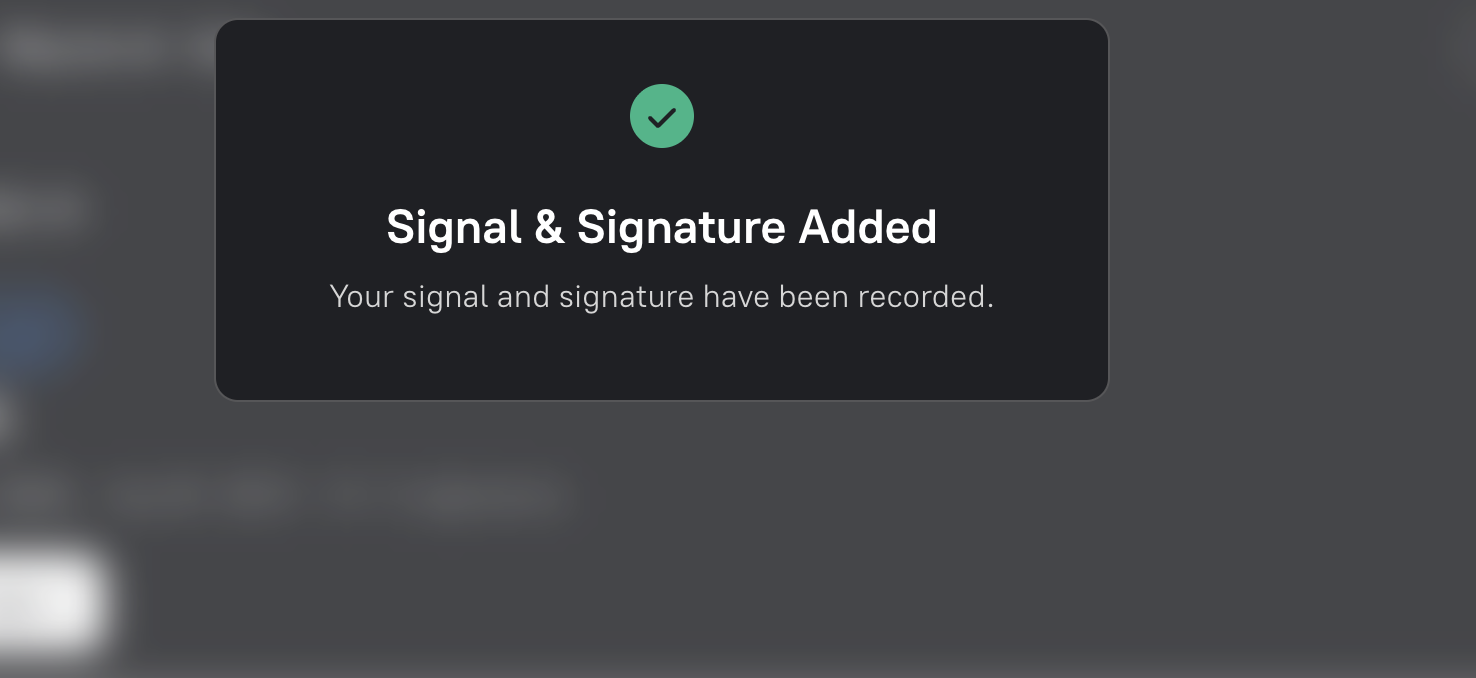
Once both actions succeed, Builder confirms that the signal and signature have been recorded.
Sign Without Adding a Signal
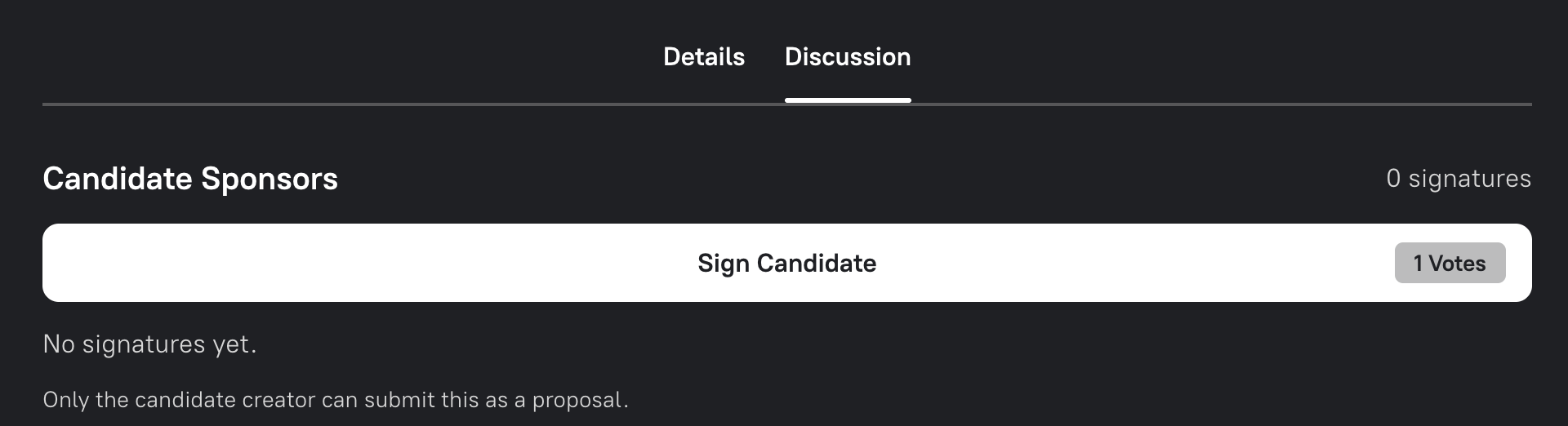
Section titled “Sign Without Adding a Signal”To sponsor without signalling or commenting, open the candidate’s Discussion tab and select Sign Candidate under Candidate Sponsors. Review and sign the wallet request. This adds the sponsor signature only.
Review the Signature Request
Section titled “Review the Signature Request”The wallet may display the sponsorship request as raw EIP-712 typed data. Before signing, check:
- the domain name, chain ID and Governor address under
verifyingContract; - the candidate creator’s address under
proposer; - the
proposalId, which binds the signature to the exact candidate content and transactions; and - the
nonceanddeadline, which prevent replay and limit how long the signature can be used.
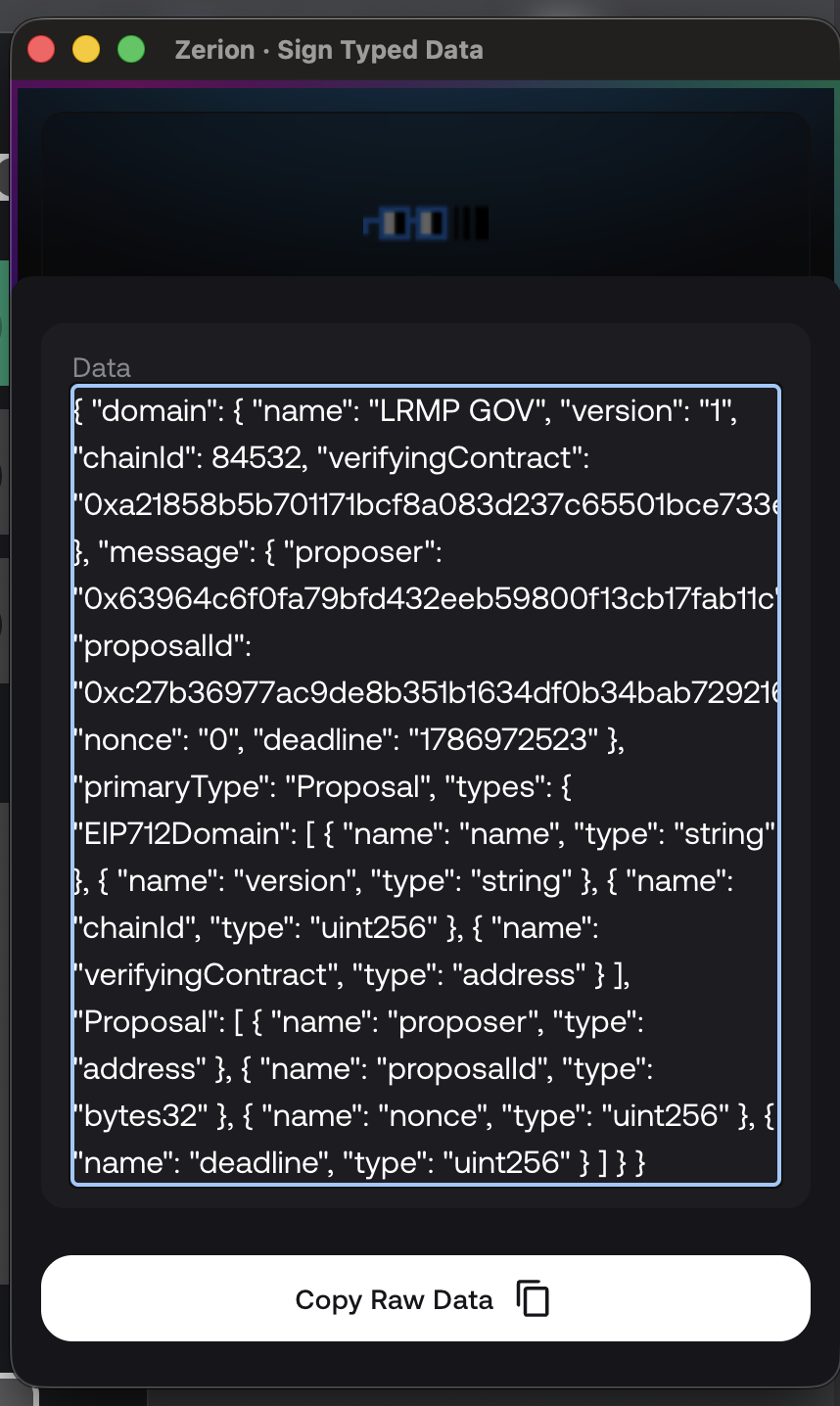
Do not sign if the network, contract, proposer or proposal ID is unexpected. The signature authorises the candidate creator to include your support when submitting this specific version through proposeBySigs; it is not a governance vote and does not transfer assets.
Sponsor signatures are time-limited and tied to one candidate version. They cannot be carried over when the candidate is edited. The candidate creator’s own signature is also excluded from the support required to submit the proposal.
Promotion to a Proposal
Section titled “Promotion to a Proposal”Once valid sponsor signatures supply enough voting power to pass the DAO’s Proposal Threshold, the candidate creator sees Ready to Submit. Only the candidate creator can promote it, so switch back to the wallet that created the candidate before continuing. The creator does not need to hold a governance token if the valid sponsor signatures provide enough voting power.
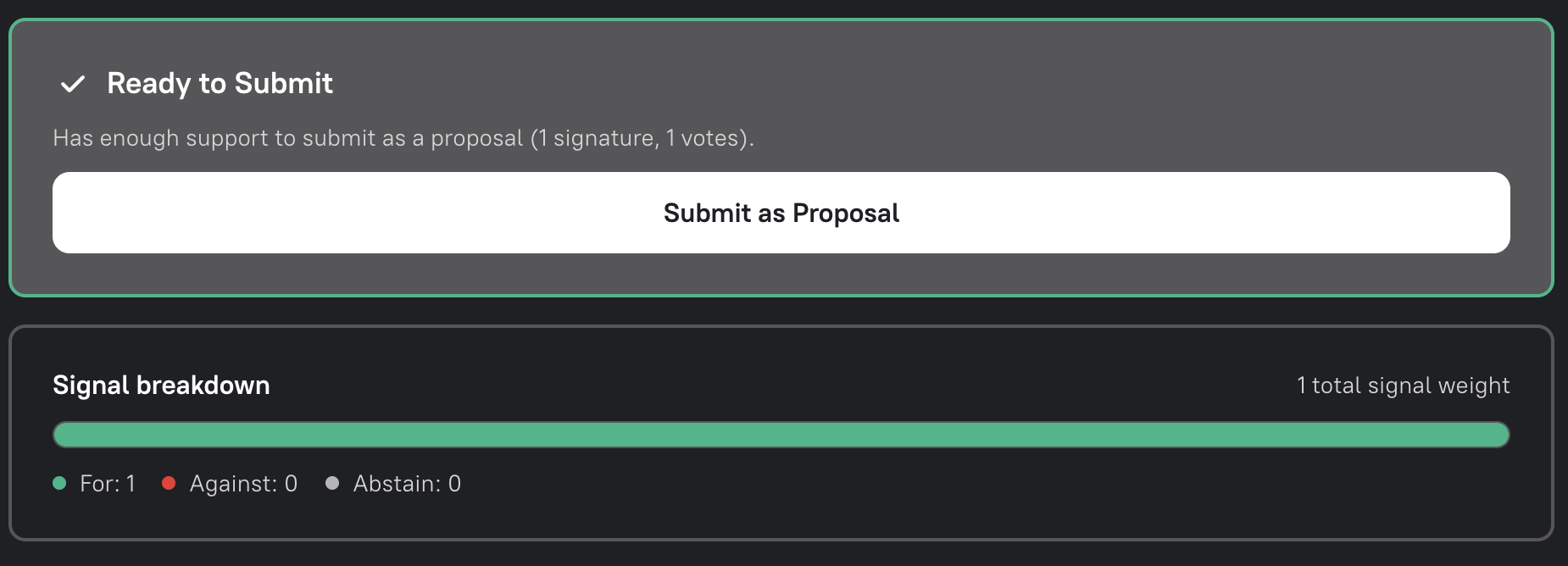
Select Submit as Proposal, then confirm the onchain transaction in the creator’s wallet. Builder submits the proposal with the collected signatures.
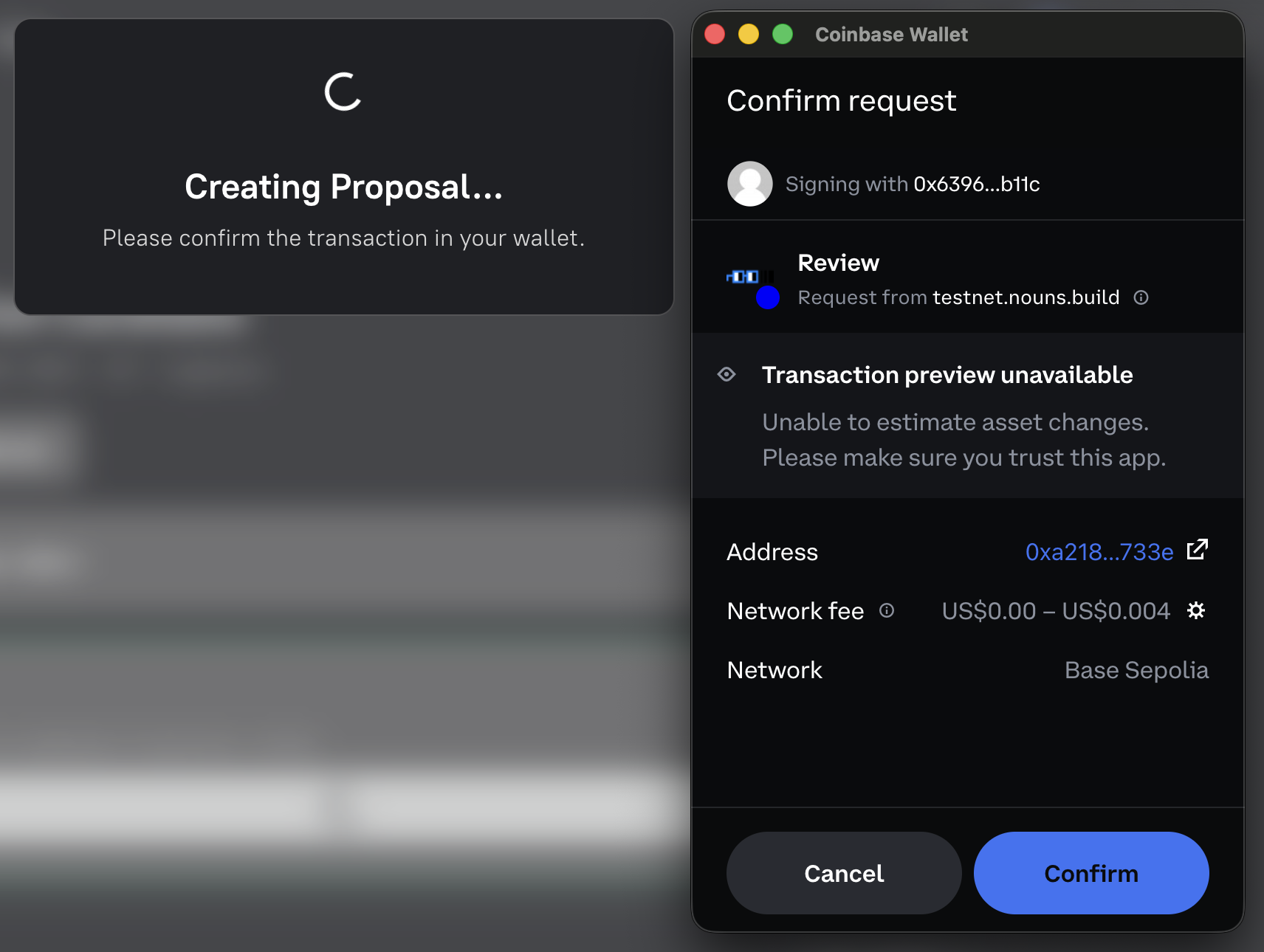
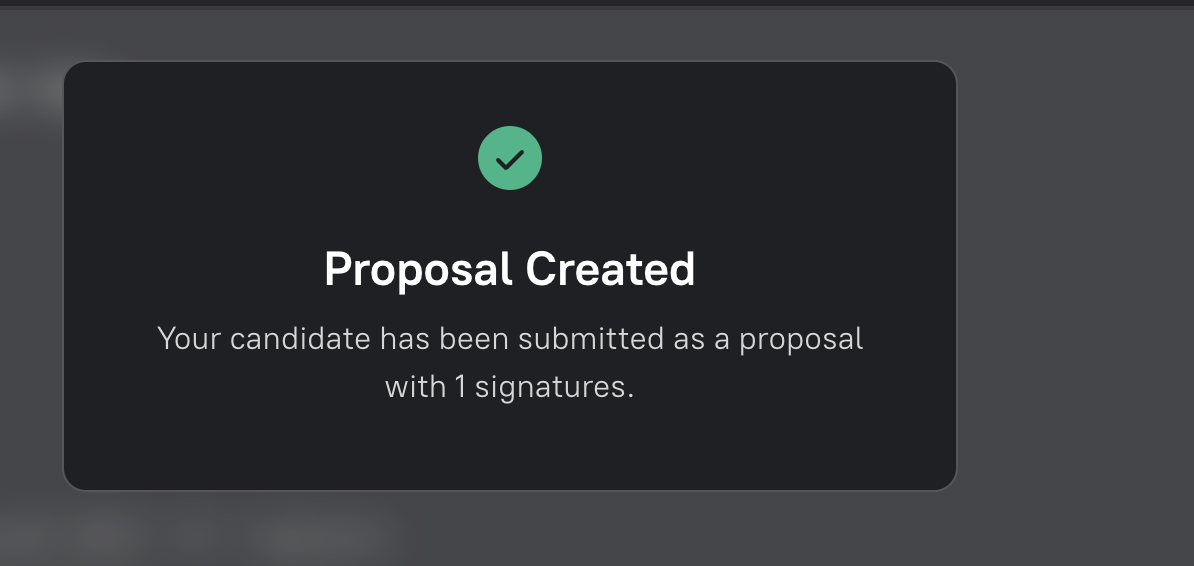
The resulting proposal links back to its originating candidate. The candidate’s discussion, signals and sponsor record remain available as governance history.
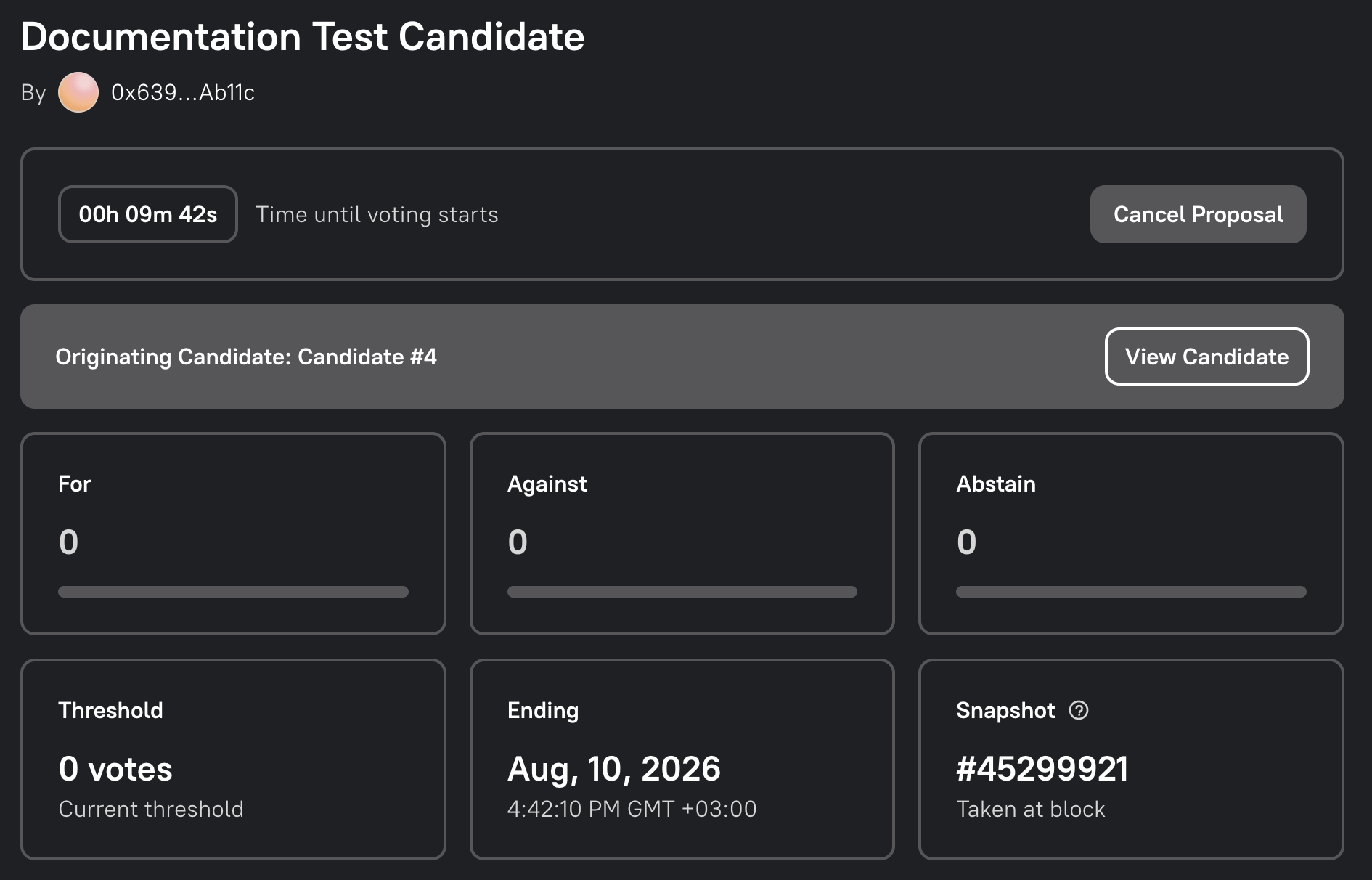
Once promoted, the proposal follows the DAO’s standard voting and execution lifecycle. See How to Create a Proposal for the remaining stages.