Signing in with Ethereum
Nouns Builder uses Sign-In with Ethereum (SIWE) to confirm that you control the wallet you connect. Signing in does not create a blockchain transaction, move funds, or cost gas.
Sign in with a regular wallet
Section titled “Sign in with a regular wallet”-
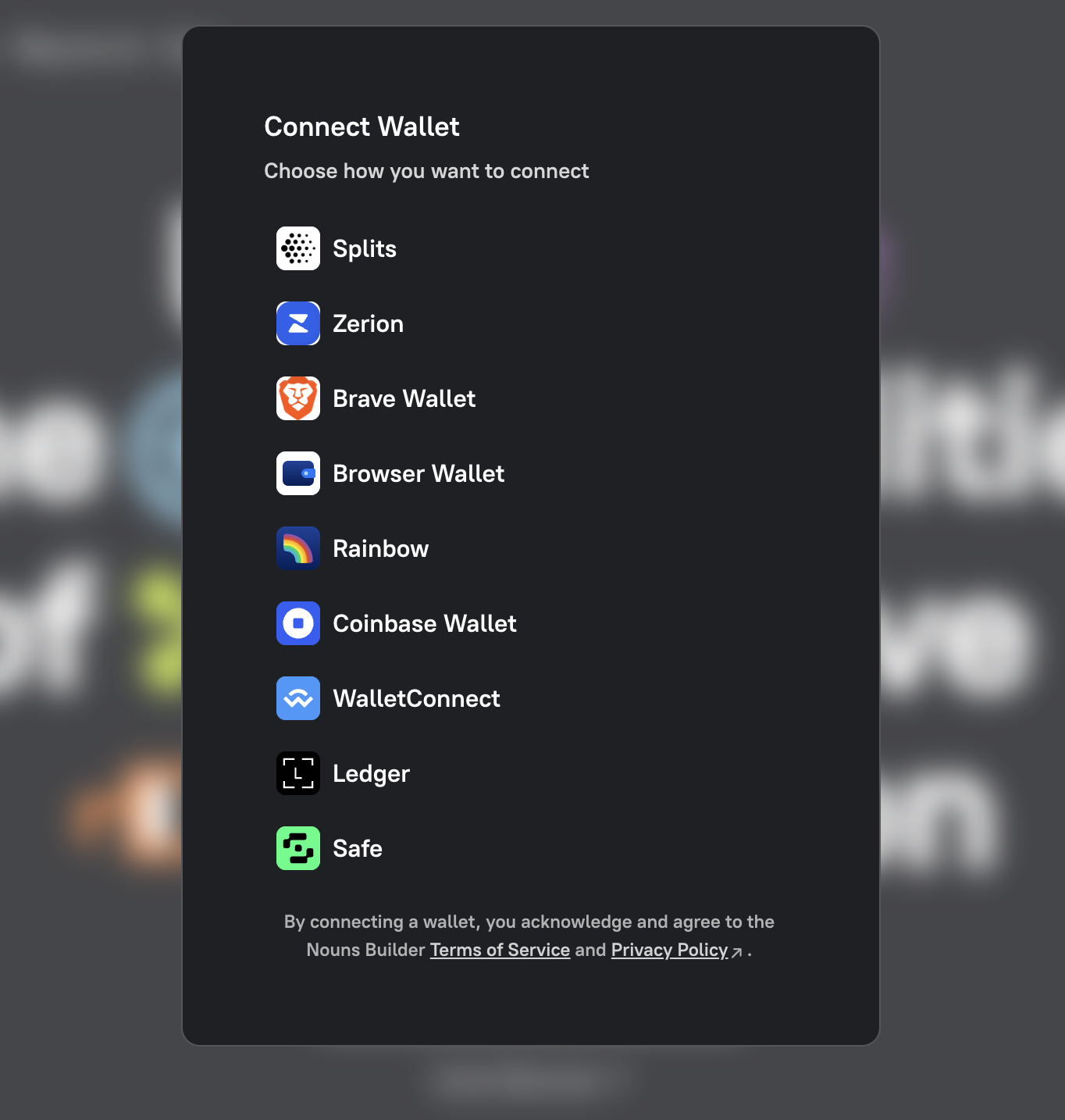
Select Connect Wallet, and choose your wallet.
-
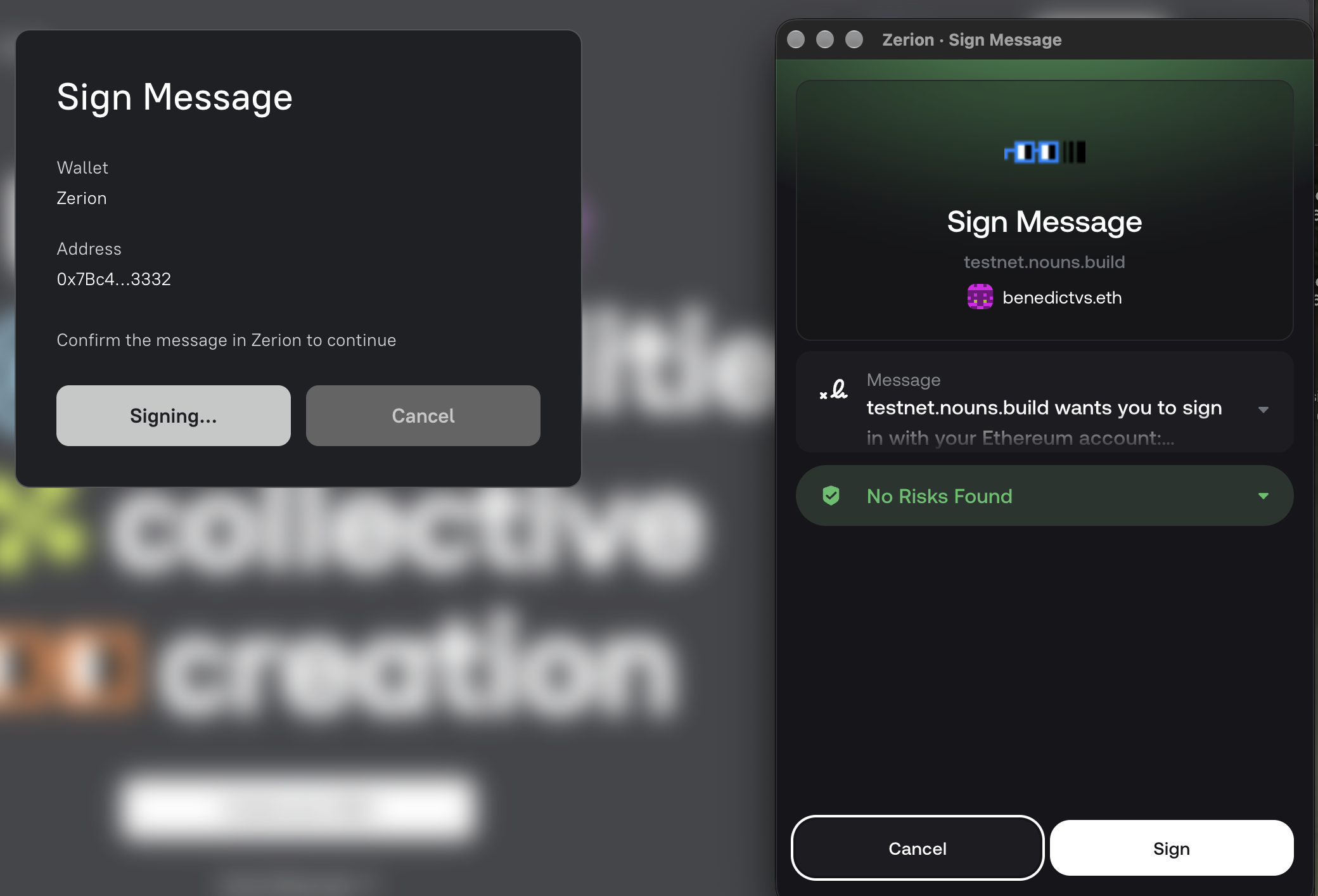
Select Sign Message. Check the site and wallet address in the request, then approve it in your wallet.
-
Wait for the Authenticated confirmation. You are now signed in.
Sign in with a Safe
Section titled “Sign in with a Safe”A Safe signs in through one of its owner wallets. This only authenticates the Safe in Nouns Builder; it does not create a Safe transaction or require approval from every signer.
-
Select Connect Wallet, then choose Safe.
-
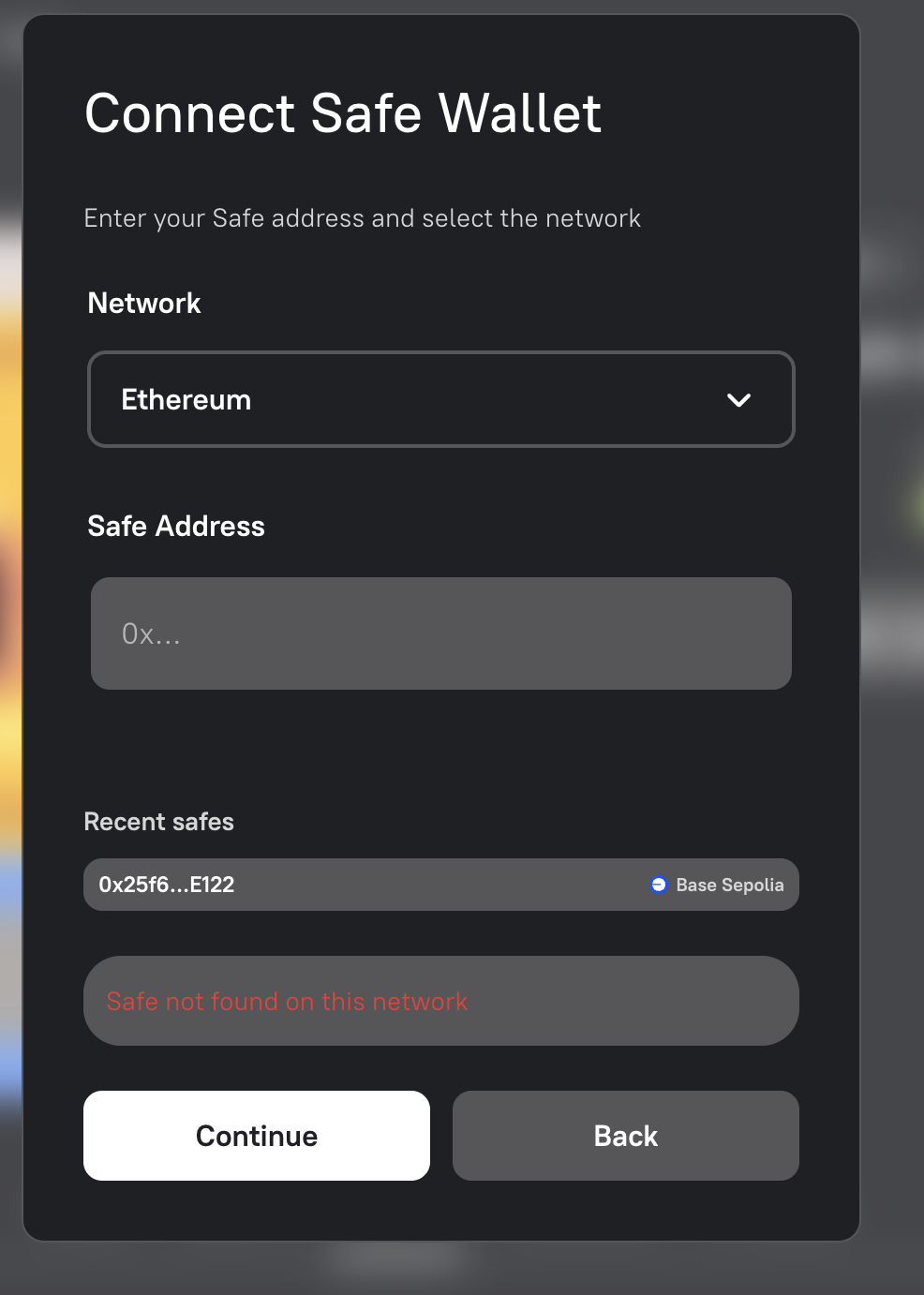
Select the network where the Safe is deployed, enter its address, and select Continue. You can also select a previously used Safe under Recent safes.
-
Choose a wallet that owns the Safe, and approve the connection.
-
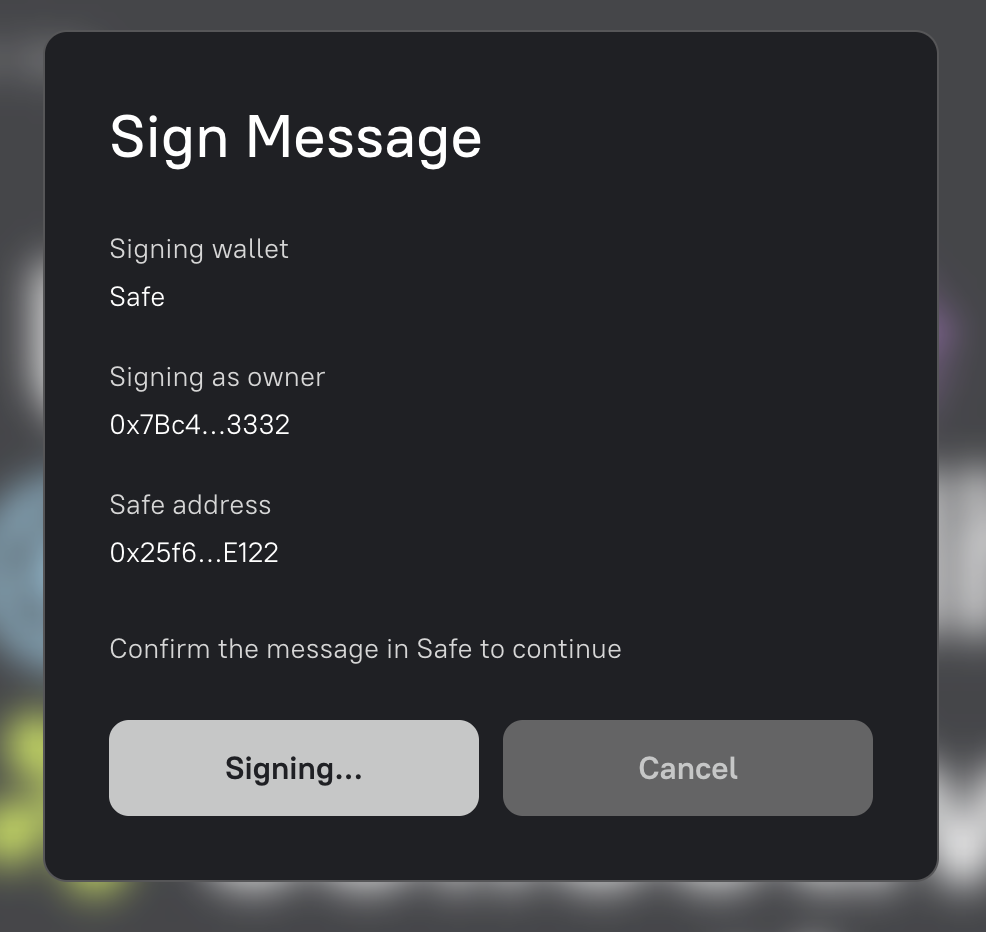
Select Sign Message, and approve the request in the owner wallet. Check both the owner and Safe addresses before signing.
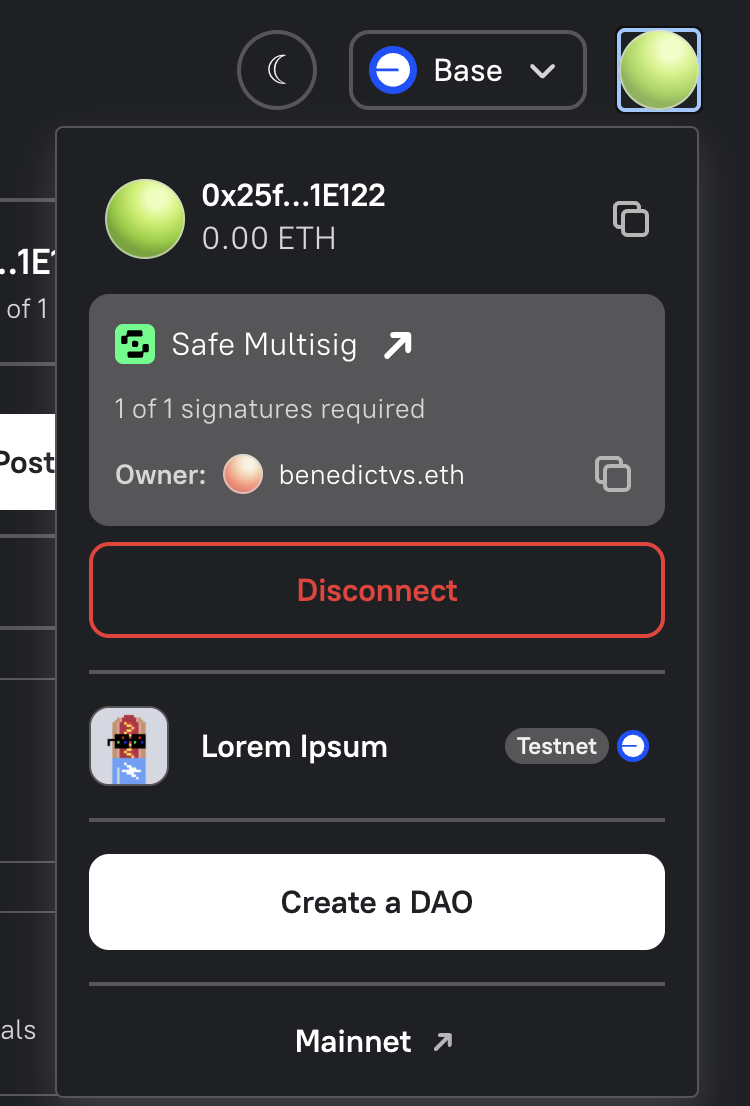
After signing in, the account menu shows the Safe address, its signature requirement, and the owner wallet used to authenticate.
Create a proposal with a Safe
Section titled “Create a proposal with a Safe”Create and review the DAO proposal as usual, then submit it. Nouns Builder displays the Safe action while your owner wallet asks you to confirm it.
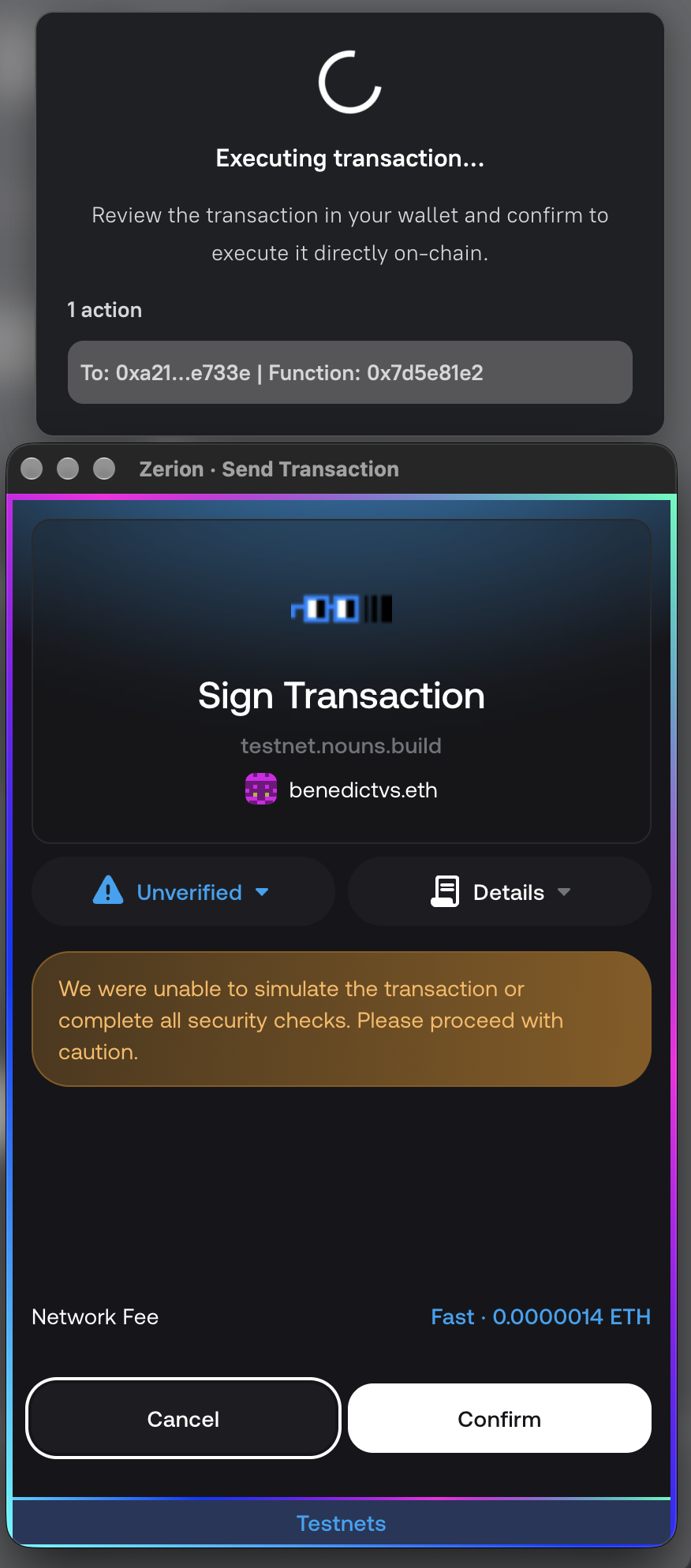
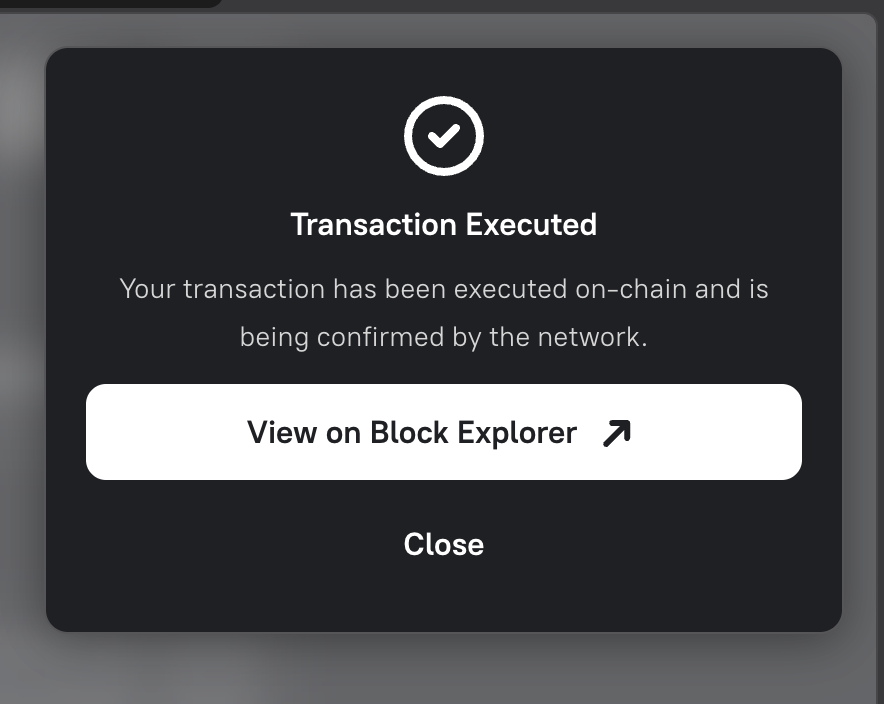
- For a 1-of-1 Safe, confirming in the owner wallet creates the DAO proposal immediately. Nouns Builder then provides a block explorer link.
- For a multisig Safe, Nouns Builder submits the action to Safe. Follow the link to Safe, then collect the required approvals and execute the transaction there. The DAO proposal is created after the Safe transaction is executed.
Troubleshooting
Section titled “Troubleshooting”Safe not found on this network
Section titled “Safe not found on this network”Safes are network-specific. If you see Safe not found on this network, select the network where the Safe was created. If it appears under Recent safes, select it to restore the saved address and network.
The sign-in or transaction request does not reach your wallet
Section titled “The sign-in or transaction request does not reach your wallet”- Temporarily disable any ad blocker or VPN for Nouns Builder, then try again. These services can sometimes block the connection that passes the request to your wallet.
- Reload the page, reconnect the wallet, and retry the request.
- If the issue continues, clear Nouns Builder’s saved site data. In Chrome, Brave, or Edge, open Developer Tools, select Application → Storage → Clear site data, then reload and reconnect. This signs you out and resets the saved connection. Your wallet, funds, and keys are safe and not affected by this operation.