The Builder Social Feed
Stay up to date with everything happening across Nouns Builder DAOs in one personalised, filterable feed: auctions, proposals, posts, and more.
Section titled “Stay up to date with everything happening across Nouns Builder DAOs in one personalised, filterable feed: auctions, proposals, posts, and more.”Overview
Section titled “Overview”The Feed is the primary landing experience on nouns.build. It provides a real-time, chronological stream of activity across all Nouns Builder DAOs on supported chains, including auction events, governance updates, community posts, and coin deployments.
The feed is personalised when you connect your wallet. It filters by the DAOs you belong to by default and surfaces quick actions relevant to your role in those communities.
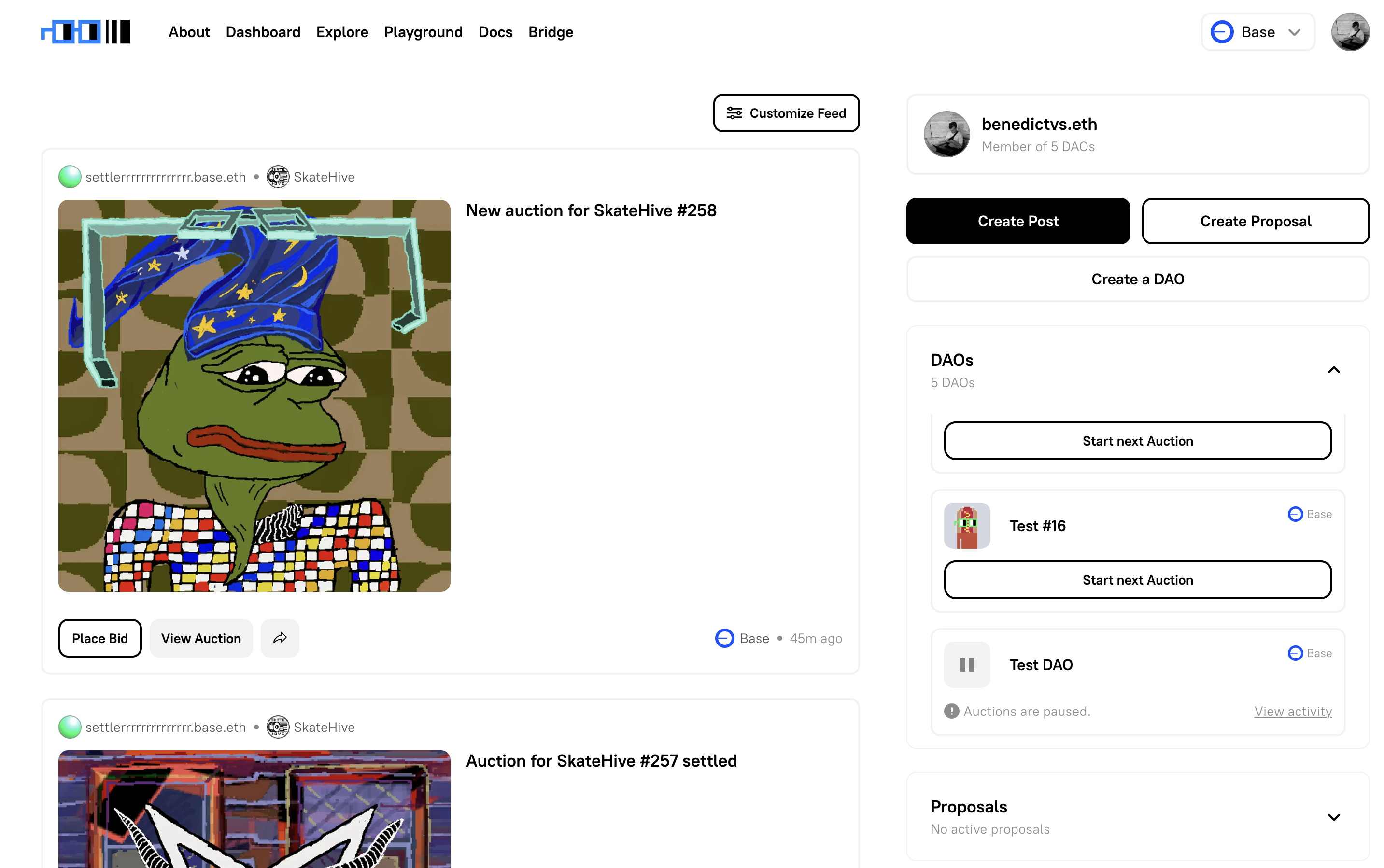
Feed Layout
Section titled “Feed Layout”The feed is divided into two columns:
- Left column (main feed): a chronological list of activity cards, each representing a single event from a DAO.
- Right column (sidebar): your profile, quick-action buttons, a collapsible summary of your DAOs with auction controls, and a collapsible view of active proposals.
At the top of the feed column, a Customize Feed button lets you filter what appears.
Feed Cards
Section titled “Feed Cards”Each card in the feed represents a single on-chain or protocol-level event. Cards display:
- The user address (or ENS name) and DAO name that generated the event
- A thumbnail of the relevant token or media
- An event title (e.g. “New auction for Example DAO #007”)
- Chain indicator and relative timestamp (e.g. “Base · 37m ago”)
- Contextual action buttons depending on the event type
Supported Event Types
Section titled “Supported Event Types”| Event | What it means | Actions shown |
|---|---|---|
| Auction Created | A new auction has started for a DAO token | Place Bid, View Auction |
| Auction Bid | A bid has been placed on an active auction | Place Bid, View Auction |
| Auction Settled | An auction has ended and the token has been claimed | Go to Latest Auction, View Auction |
| Proposal Created | A new governance proposal has been submitted | View Proposal |
| Proposal Vote | A vote has been cast on an active proposal | View Proposal |
| Proposal Executed | A proposal has passed and been executed on-chain | View Proposal |
| Proposal Update | A Propdate has been posted on a proposal | View Propdate |
| Coining | Coining posts appear in the feed and show the associated coin page. | Trade or Buy, View Coin |
| Creator Coin Deployed | A creator coin has been deployed for a DAO | View Coin |
| Drop Created | An ERC-721 drop proposal has been executed | View Drop |
The share icon (↗) on each card copies a direct link to that event.
Clicking the DAO name or avatar in the top-left corner of any card navigates directly to that DAO’s page.
The Sidebar
Section titled “The Sidebar”The sidebar on the right-hand side of the feed gives you a real-time snapshot of your activity across the platform and surfaces quick actions without leaving the feed.
Profile Row
Section titled “Profile Row”At the top of the sidebar your connected ENS name or wallet address is displayed alongside your avatar, with a note showing how many DAOs you are a member of (e.g. “Member of 5 DAOs”).
Quick Actions
Section titled “Quick Actions”Three action buttons sit directly below your profile:
Create Post— publish a content coin on behalf of one of your DAOs. Opens a DAO selector, then a publish form with media upload, coin name, symbol, and description fields. This action is available only for DAOs that already have a Creator Coin deployed.Create Proposal— start a new governance proposal for one of your DAOs. Opens the standard proposal builder. See How to Create a Proposal for a full walkthrough.Create a DAO— deploy a new Nouns Builder DAO. See How to Create a DAO for a full walkthrough.
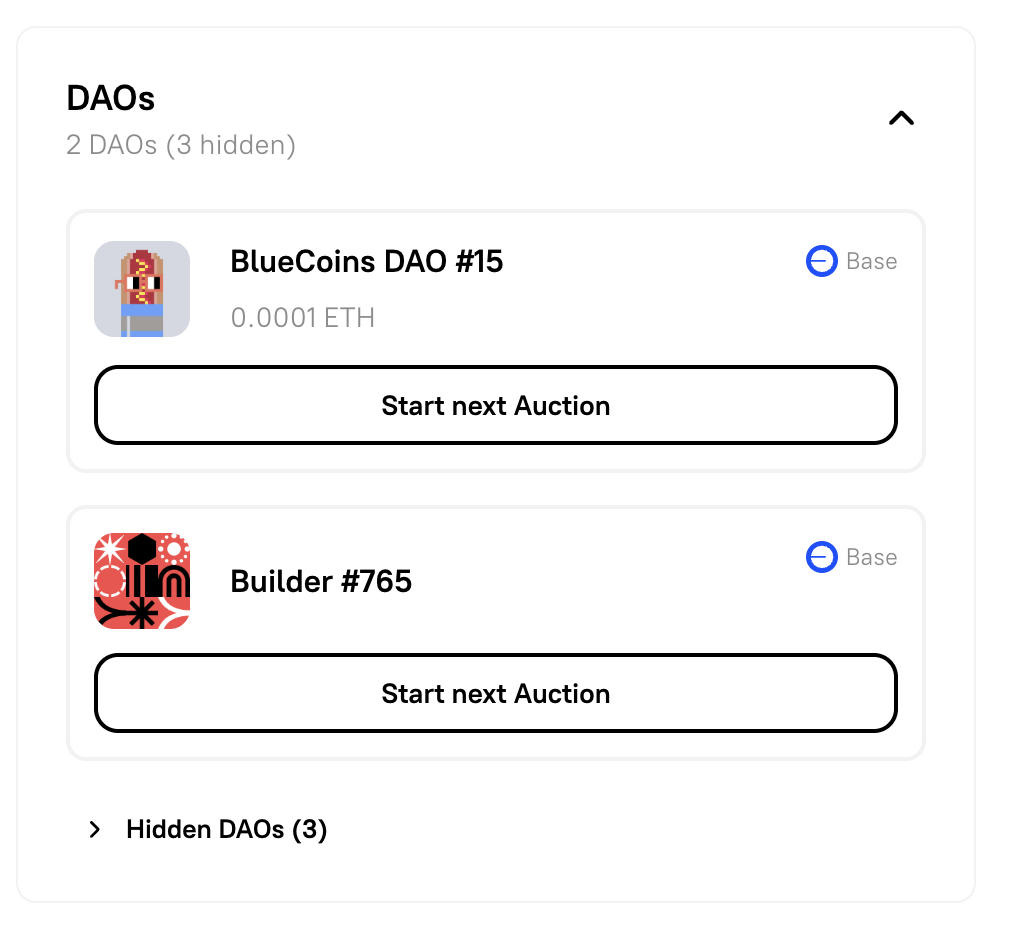
The DAOs section is a collapsible panel listing all DAOs you are a member of. Click the section header to expand or collapse it.
When expanded, each DAO you belong to appears as a card showing:
- The DAO name and token avatar
- The chain it is deployed on (e.g. Base)
- An auction status indicator:
Start next Auction— the previous auction has settled and a new one can be kicked off. Click to trigger the settlement and start the next auction.- Auctions are paused — the DAO’s auction mechanism is currently paused. A
View activitylink takes you to the DAO’s activity page.
The count of your member DAOs (e.g. “5 DAOs”) is shown in the collapsed state as a summary.
In case you have hidden DAOs, they are nested in a droplist of “Hidden DAOs” that can be expanded. Please see further documentation on hiding DAOs in the User Profile Section.
Proposals
Section titled “Proposals”The Proposals section is a collapsible panel showing active governance proposals across all the DAOs you belong to. Click the section header to expand or collapse it.
When there are no active proposals, the panel displays: “No active proposals at the moment.”
When active proposals are present, each one appears as a card with its title, DAO name, and voting status. Clicking a proposal card takes you directly to the proposal page.
Unauthenticated state
Section titled “Unauthenticated state”When no wallet is connected, the sidebar shows only a prompt to connect your wallet. The quick-action buttons, DAOs section, and Proposals section are not visible until you connect.
Customising the Feed
Section titled “Customising the Feed”Click Customize Feed at the top of the feed column to open the filter panel.
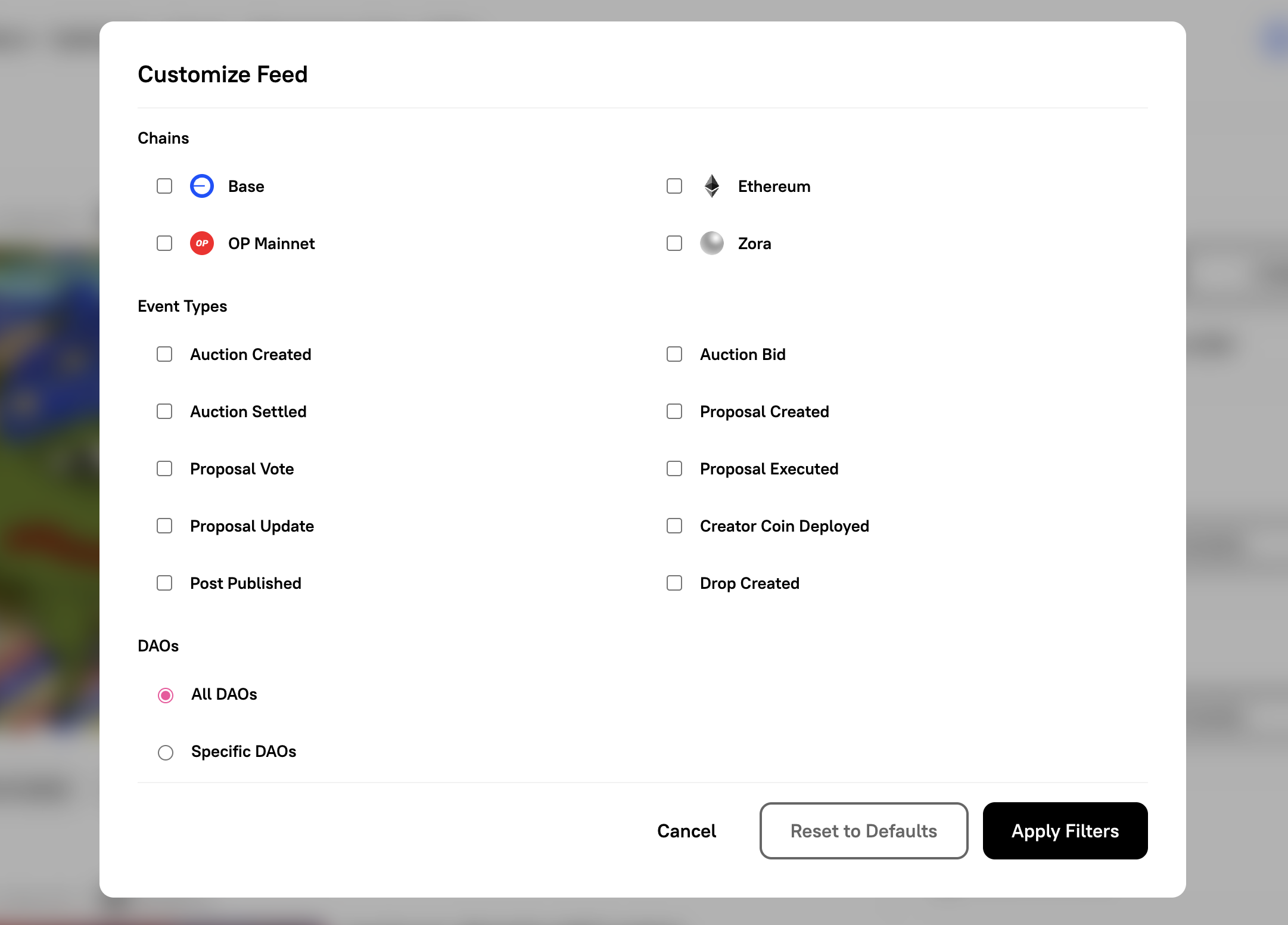
You can filter by three dimensions:
Chains
Section titled “Chains”Select one or more chains to include in your feed:
- Base
- Ethereum
- OP Mainnet
- Zora
By default, all chains are included.
Event Types
Section titled “Event Types”Toggle individual event types on or off:
- Auction Created
- Auction Bid
- Auction Settled
- Proposal Created
- Proposal Vote
- Proposal Executed
- Proposal Update
- Creator Coin Deployed
- Post Published
- Drop Created
This is useful if, for example, you only want to track governance activity and want to hide auction noise, or you’re specifically watching for new coin deployments.
Choose between:
- All DAOs — show events from every DAO on the selected chains (default)
- Specific DAOs — restrict the feed to a curated list of DAOs you choose
Once you’ve configured your filters, click Apply Filters to update the feed. Select Reset to Defaults to clear all filters and return to the default view.
Creating a Post
Section titled “Creating a Post”To publish a post from the feed:
- Click
Create Postin the sidebar. - In the Select DAO for Post dialog, select the DAO you want to publish on behalf of. You can search by name.
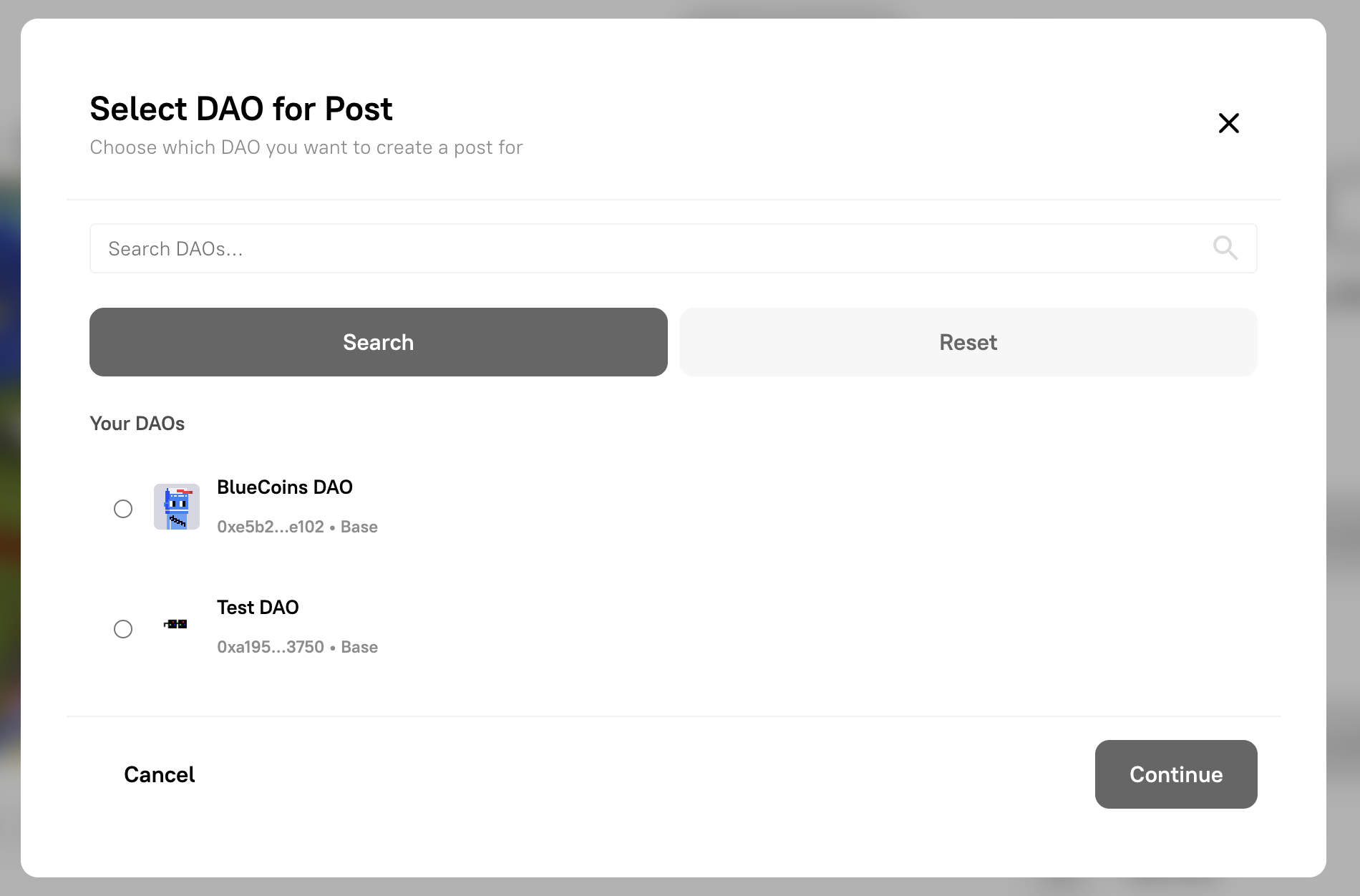
- Click
Continue. - On the Publish Post page:
- Upload your media (image, video, or audio).
- Enter a name (1–100 characters) — this becomes the display name for your content coin.
- Set a symbol (1–10 uppercase letters/numbers) — auto-generated from the name, but editable.
- Add a description.
- Review the live preview on the right to see how your post will appear to collectors.
- Submit to deploy the post on-chain.
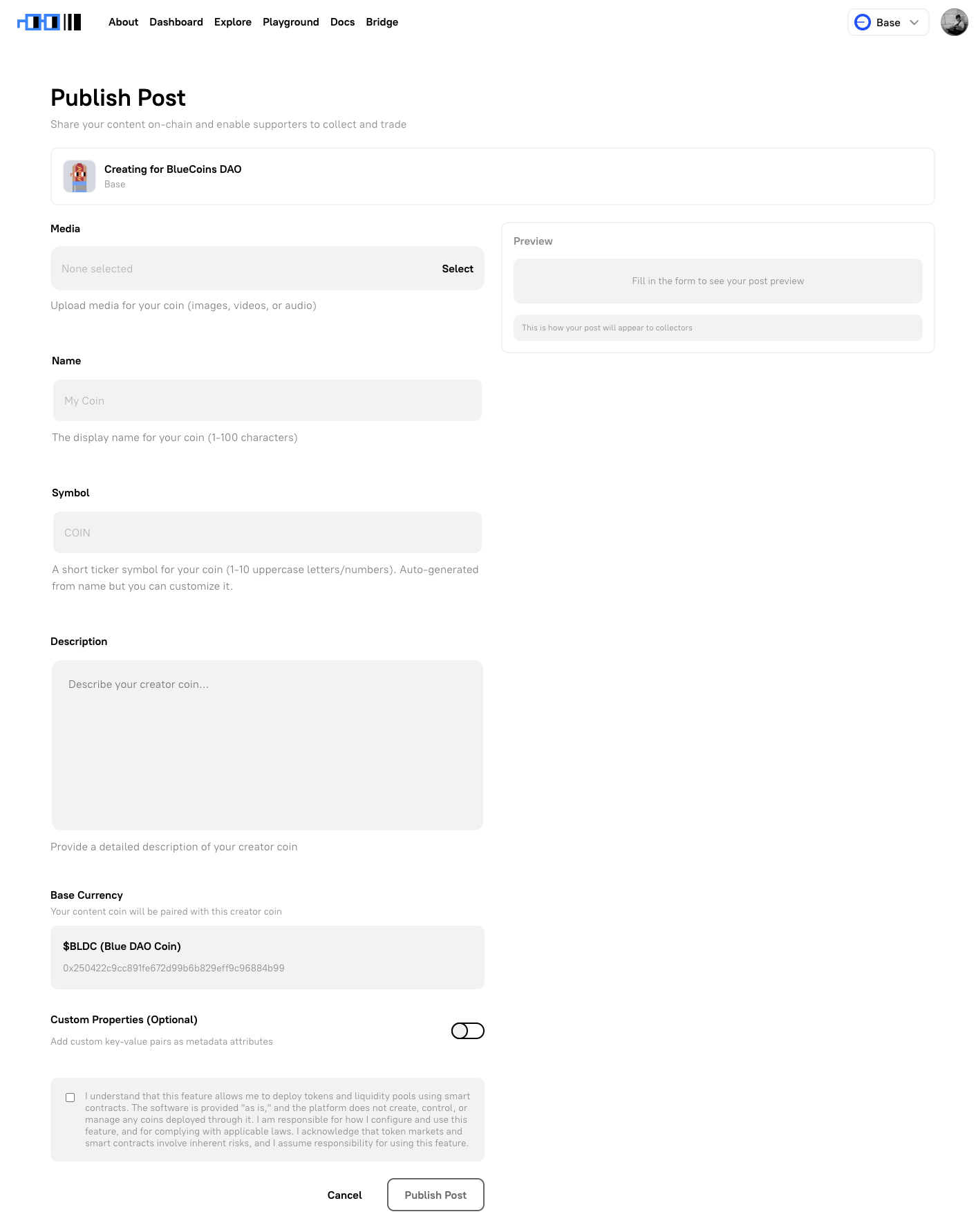
Posts are published as Content Coins using Zora’s ERC-20 Coining SDK and appear in the feed under the Post Published event type.
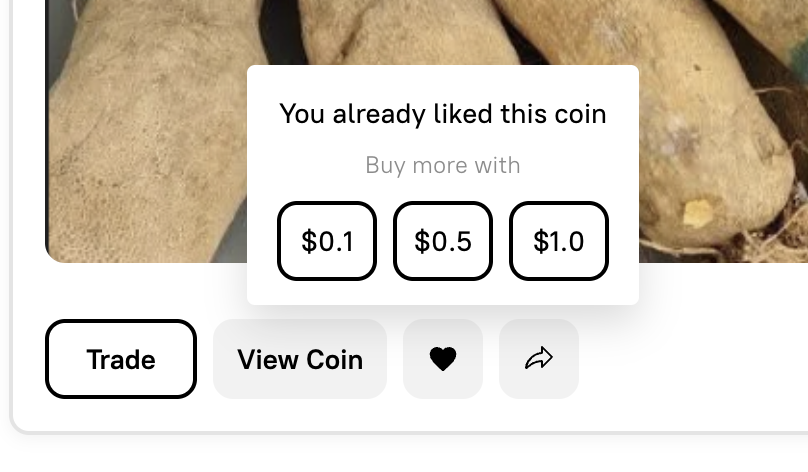
Posts published from the feed are coining posts. When a DAO publishes a post, the post is created as an associated coin and appears in the feed as a Published post event. From the feed, members can open the coin page and, depending on the state of the asset, see actions such as Trade, Buy, and View Coin.
Once the post is live, you can:
- Trade coins on the coin page
- Comment on Content Coins on the coin page
- Like coins by purchasing USD 0.10, USD 0.50, or USD 1.00 worth of the coin.
- Share the coin by copying the link
- Filter to your DAOs — if you’re a member of several DAOs, set the DAOs filter to “Specific DAOs” and select only the ones you actively follow to reduce noise.
- Chain-specific views — working only on Base? Deselect other chains to keep the feed focused.
- Auction controls — use the
Start next Auctionbutton in the DAOs sidebar panel to kick off a new auction for your DAO without leaving the feed page. - Governance tracking — enable “Proposal Created” and “Proposal Vote” in the event type filters to stay informed about governance activity across your communities without visiting each DAO page individually.