Your Profile
Learn how to manage your profile and customize which DAOs appear in your dashboard.
Section titled “Learn how to manage your profile and customize which DAOs appear in your dashboard.”Your Profile
Section titled “Your Profile”Manage your identity and DAO visibility on Nouns Builder
Section titled “Manage your identity and DAO visibility on Nouns Builder”Your profile page gives you an at-a-glance view of your on-chain activity and the DAOs you are a member of. It is accessible by connecting your wallet and navigating to your profile via the avatar menu in the top-right corner of the app.
Profile Overview
Section titled “Profile Overview”Once connected, your profile displays:
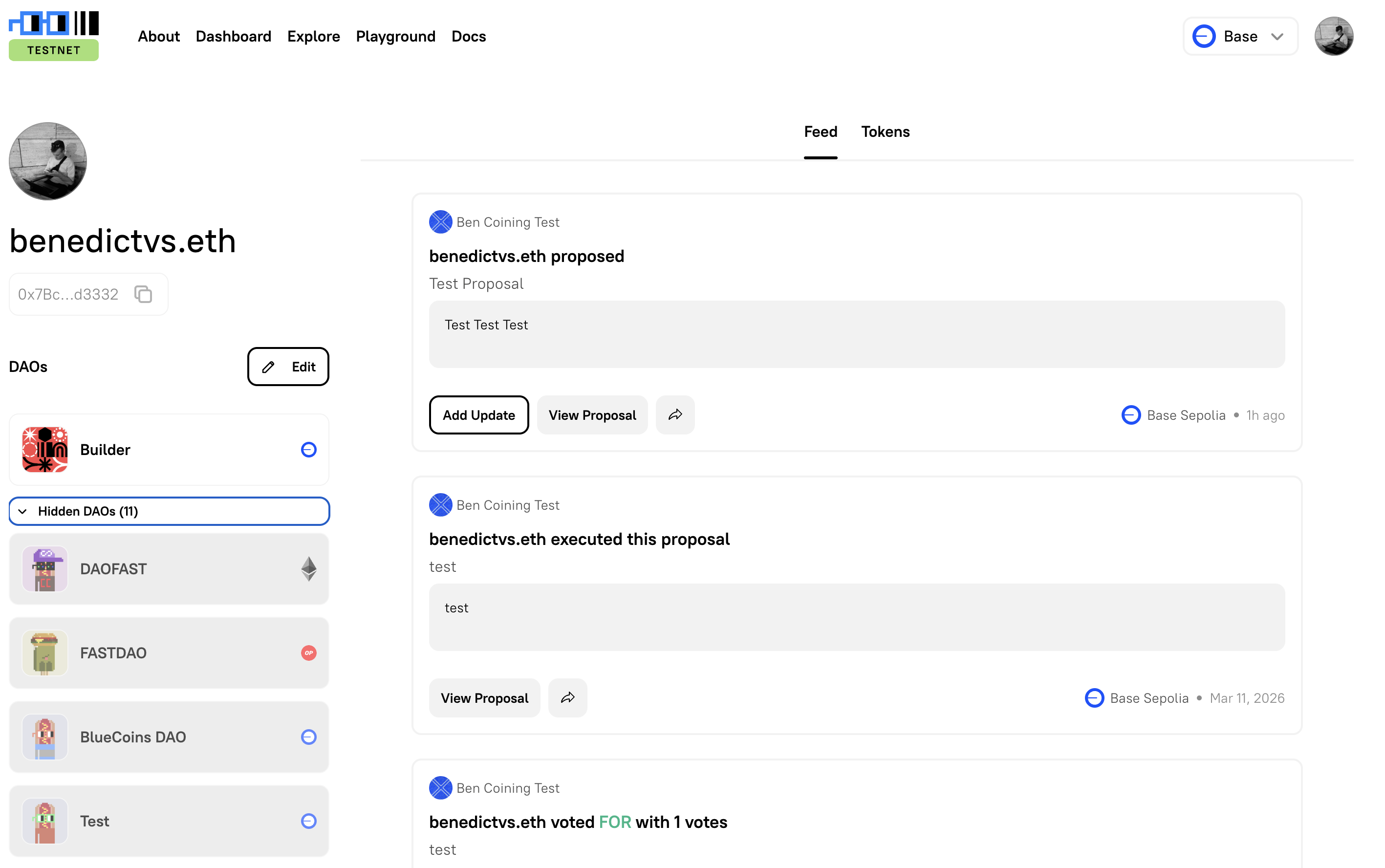
- Your ENS name (or shortened wallet address if no ENS is set)
- Your wallet address, with a one-click copy button
- A Feed of your recent on-chain activity across all DAOs — including proposals submitted, votes cast, and proposals executed
- A Tokens tab listing the DAO tokens you hold
DAOs Section
Section titled “DAOs Section”The DAOs section on your profile lists every DAO in which your connected wallet holds a token. Each entry shows the DAO name, logo, and the network it is deployed on (e.g. Ethereum mainnet, Base, Optimism).
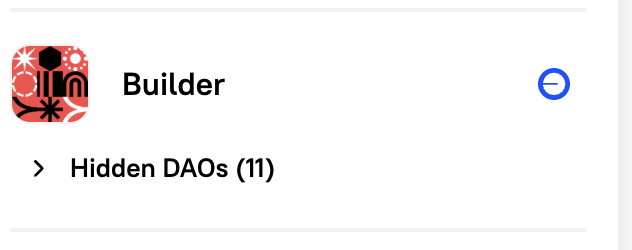
DAOs you have chosen to hide are collapsed under a Hidden DAOs counter. Click the arrow to expand and view them.
Hidden DAOs (default)
Open DAOs
Editing Your DAO List
Section titled “Editing Your DAO List”You can customise which DAOs are visible on your profile and in your wallet dropdown by using the Edit mode.
-
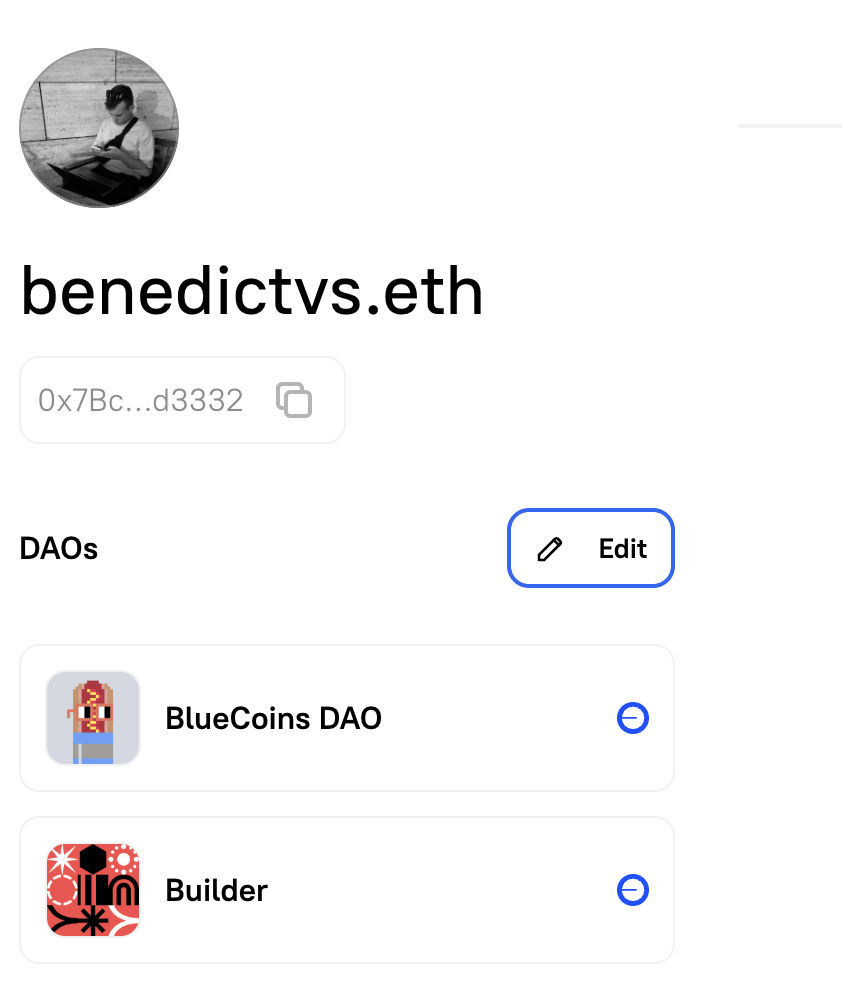
Open Edit mode
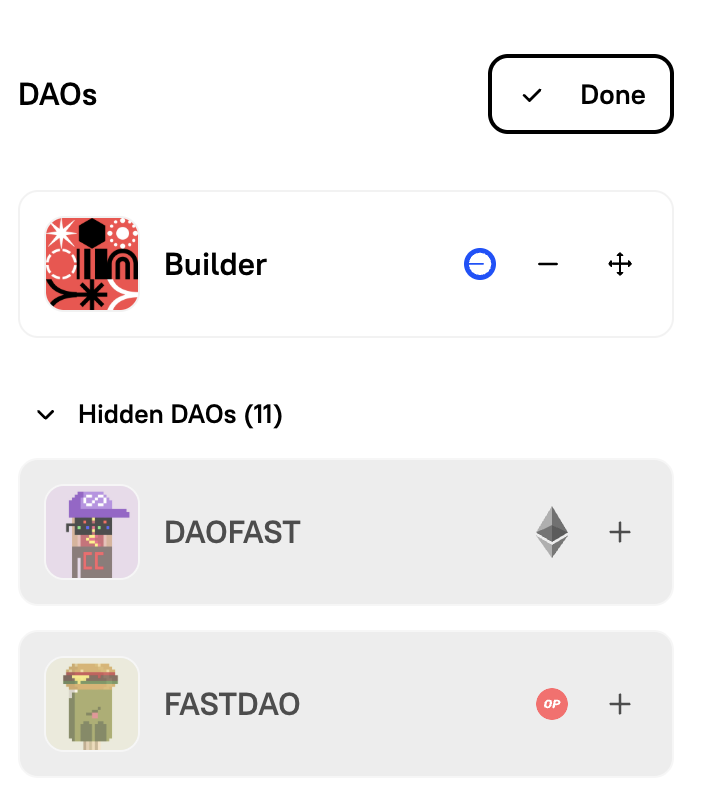
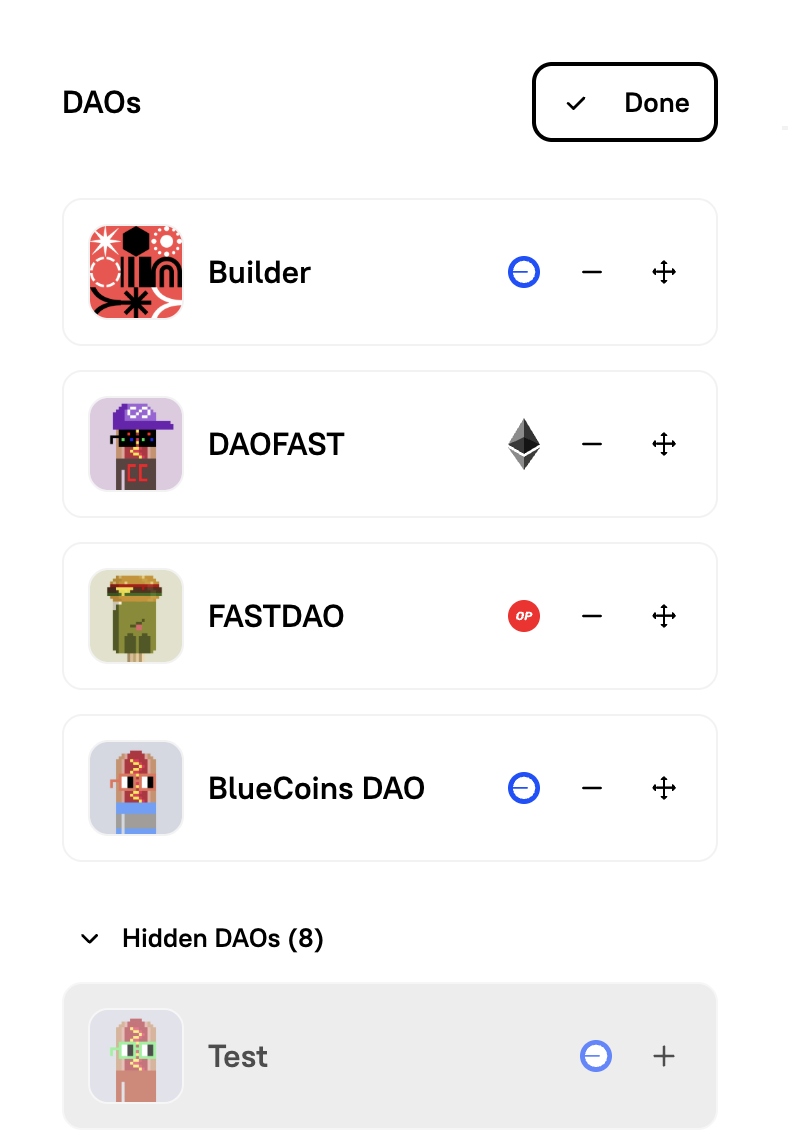
Click the Edit button next to the DAOs heading on your profile page. Each DAO entry will now show additional controls.
-
Hide a DAO
Click the minus (−) icon next to a DAO to hide it. Hidden DAOs are moved to the Hidden DAOs group and are no longer shown in your profile or wallet dropdown by default. You can also use the arrows to reorder DAOs.
-
Restore a hidden DAO
Expand the Hidden DAOs section by clicking the arrow. Click the plus (+) icon next to any hidden DAO to make it visible again.
-
Reorder your DAOs
Click and drag the move (⊕) handle on the right side of a DAO entry to reorder how DAOs appear in your list.
-
Save your changes
Click Done to exit Edit mode and save your preferences.
Wallet Dropdown
Section titled “Wallet Dropdown”The wallet dropdown — accessible by clicking your avatar in the top-right corner — mirrors your profile’s DAO list. It shows:
- Your ENS name and current ETH balance
- Your visible DAOs, each with its network indicator
- A count of Hidden DAOs, expandable inline
- A Create a DAO button to launch a new DAO
- A quick link to switch between Mainnet and testnet environments
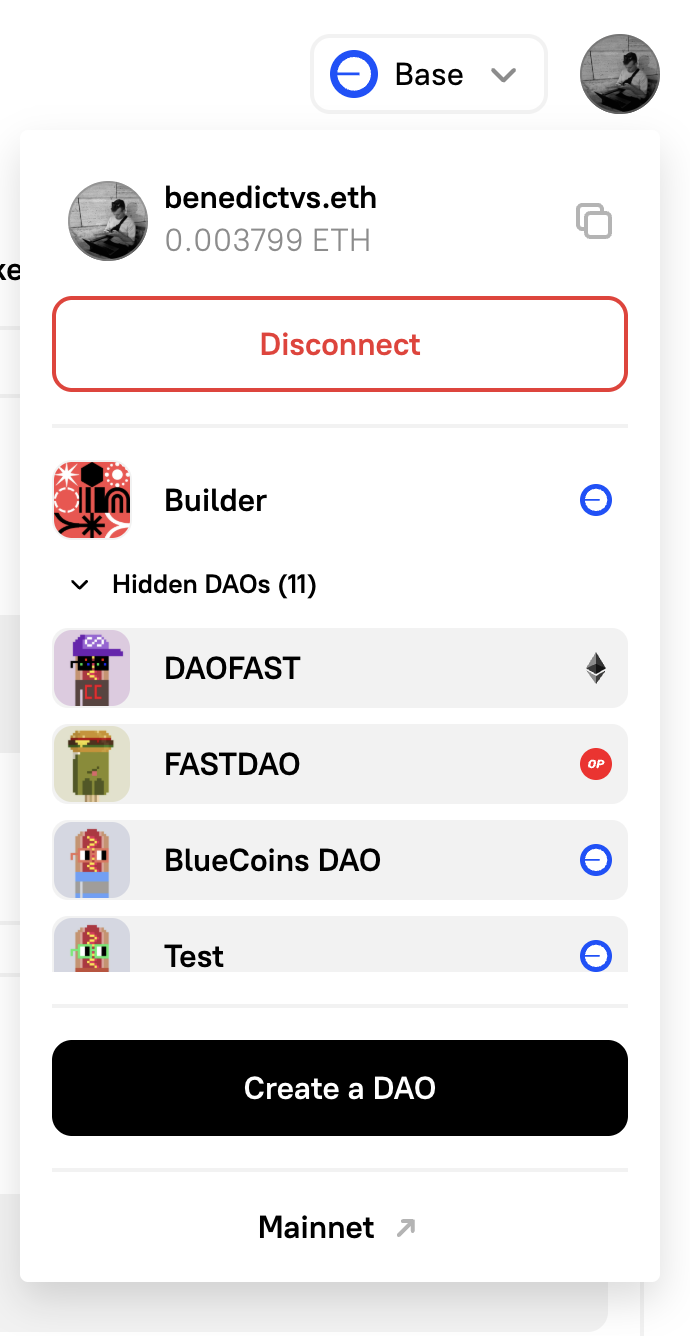
Changes made in Edit mode on your profile are reflected immediately in the wallet dropdown.