Retrieving DAO Artwork via IPFS
This guide explains how to retrieve and download your DAO’s artwork from IPFS using IPFS Desktop. This is useful when you need to view the existing folder structure before adding or replacing artwork, or when you want to download the complete artwork set.
Prerequisites
Section titled “Prerequisites”- IPFS Desktop installed on your machine
- Your DAO’s artwork IPFS CID (Content Identifier)
Finding Your DAO’s Artwork CID
Section titled “Finding Your DAO’s Artwork CID”Your DAO’s artwork is stored on IPFS and can be accessed via its CID. To locate this:
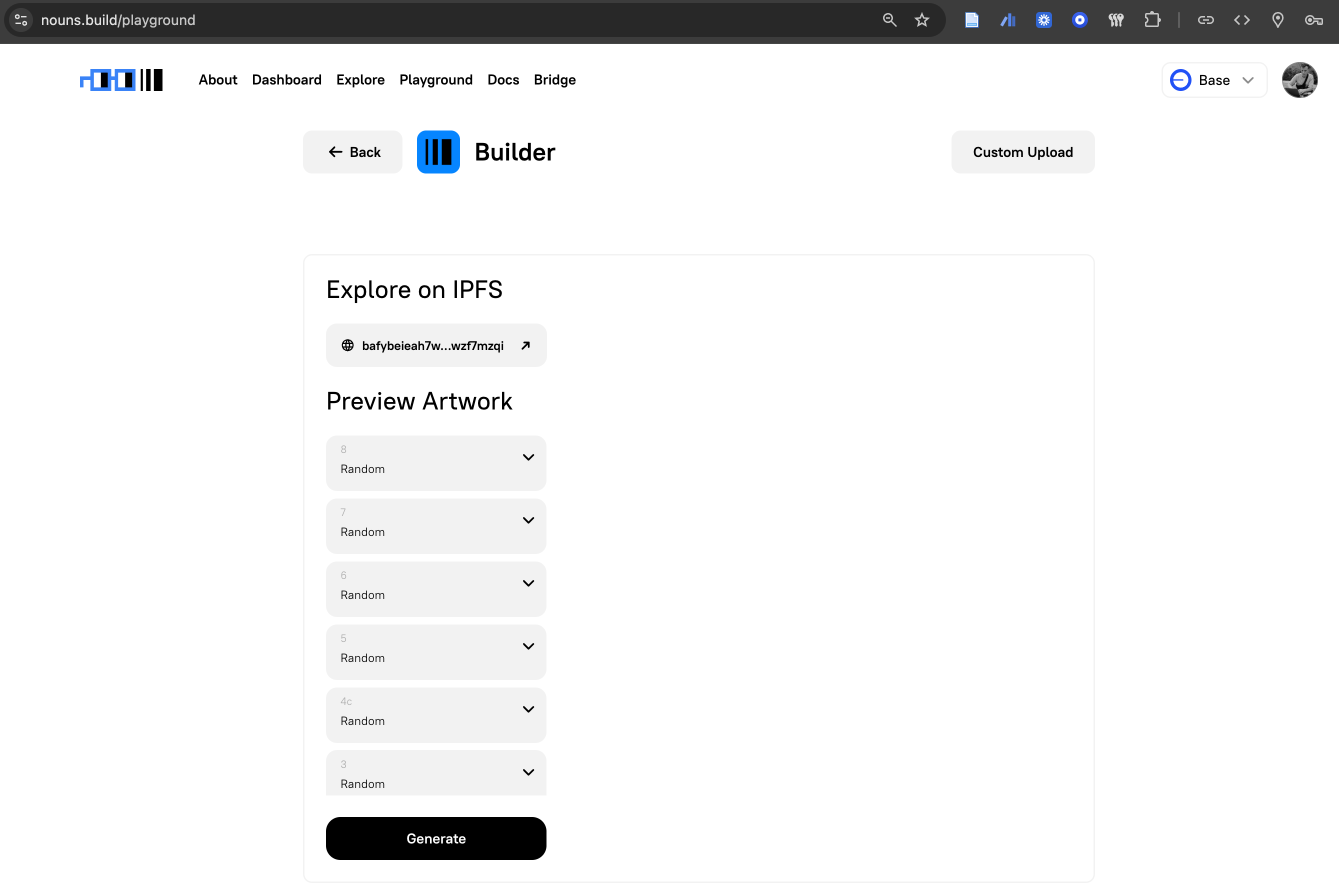
- Navigate to nouns.build/playground
- Select your DAO from the list
- Locate the “Explore on IPFS” section
- The CID will be displayed as a clickable link (e.g.,
bafybeieah7w...wzf7mzqi)
Viewing Artwork in Your Browser
Section titled “Viewing Artwork in Your Browser”Before downloading, you can explore the artwork directory structure directly in your browser using an IPFS gateway:
- Click the CID link in the Playground section, or manually construct the URL:
https://ipfs.io/ipfs/[CID] - Replace
[CID]with your DAO’s artwork CID - Example:
https://ipfs.io/ipfs/bafybeihjotbyklahe2bi4zmlaoryxwy5xmwfhyyyhv5bu4saoivx3nxpta/
Alternative gateways if ipfs.io is unavailable:
https://dweb.link/ipfs/[CID]https://gateway.pinata.cloud/ipfs/[CID]
Downloading Artwork via IPFS Desktop
Section titled “Downloading Artwork via IPFS Desktop”Step 1: Configure Peering with Pinata
Section titled “Step 1: Configure Peering with Pinata”To ensure IPFS Desktop can retrieve content pinned by Nouns Builder’s infrastructure, you need to peer with Pinata’s IPFS nodes:
- Open IPFS Desktop
- Navigate to Settings
- Locate the “Peers” or “Swarm” section
- Add Pinata’s peering addresses following Pinata’s peering documentation
This ensures your IPFS node can efficiently discover and retrieve content from Pinata’s infrastructure.
Step 2: Retrieve the Artwork Folder
Section titled “Step 2: Retrieve the Artwork Folder”- In IPFS Desktop, navigate to the “Files” tab
- Select “Import” or use the search function
- Enter your DAO’s artwork CID
- IPFS Desktop will begin retrieving the content from the network
Step 3: Download the Files
Section titled “Step 3: Download the Files”Once retrieved:
- The artwork folder will appear in your IPFS Desktop file browser
- Right-click on the folder
- Select “Export” or “Download” to save it to your local machine
- Choose your destination directory
The complete folder structure, including all layers and variants, will be downloaded to your computer.
Troubleshooting
Section titled “Troubleshooting”CID not found or timing out
Section titled “CID not found or timing out”- Verify you’re using the correct CID from the Playground section
- Check your internet connection
- Ensure you’ve configured Pinata peering correctly
- Try accessing via a browser gateway first to confirm the content exists
Slow retrieval speeds
Section titled “Slow retrieval speeds”- Large artwork sets (>100 MB) take longer to retrieve
- Consider retrieval during off-peak hours
- Check if your ISP blocks or throttles peer-to-peer traffic
Gateway displays “Invalid CID” error
Section titled “Gateway displays “Invalid CID” error”- Ensure the CID is correctly formatted with no extra characters
- Note that ipfs.io does not yet support all CIDv1 formats; try alternative gateways like dweb.link
Understanding the Folder Structure
Section titled “Understanding the Folder Structure”Downloaded artwork follows this structure:
artwork-folder/├── 0-background/│ ├── variant1.png│ ├── variant2.png│ └── ...├── 1-body/│ ├── variant1.png│ └── ...└── 2-accessories/ └── ...Each numbered folder represents a layer (trait/property), with variants stored inside. This structure must be maintained when creating Add Artwork or Replace Artwork proposals.
Refer to the Changing and Adding Artwork guide for details on modifying your DAO’s artwork using this structure.